
Keep useful tabs in your Revit workspace.
UTILITIES
Tabs Visibility
WHAT THE TOOL DOES
Move existing ribbon tabs between Displayed and Hidden, then Apply. Saved hidden tabs are hidden again only after a project is stable. Only explicit Show/Show All can restore tabs; contextual and family tabs remain managed by Revit.
A CONCRETE USE CASE
A need. A clear workflow.
Organise visible and hidden lists, then apply the chosen layout.
KEY FEATURES
Two clear lists
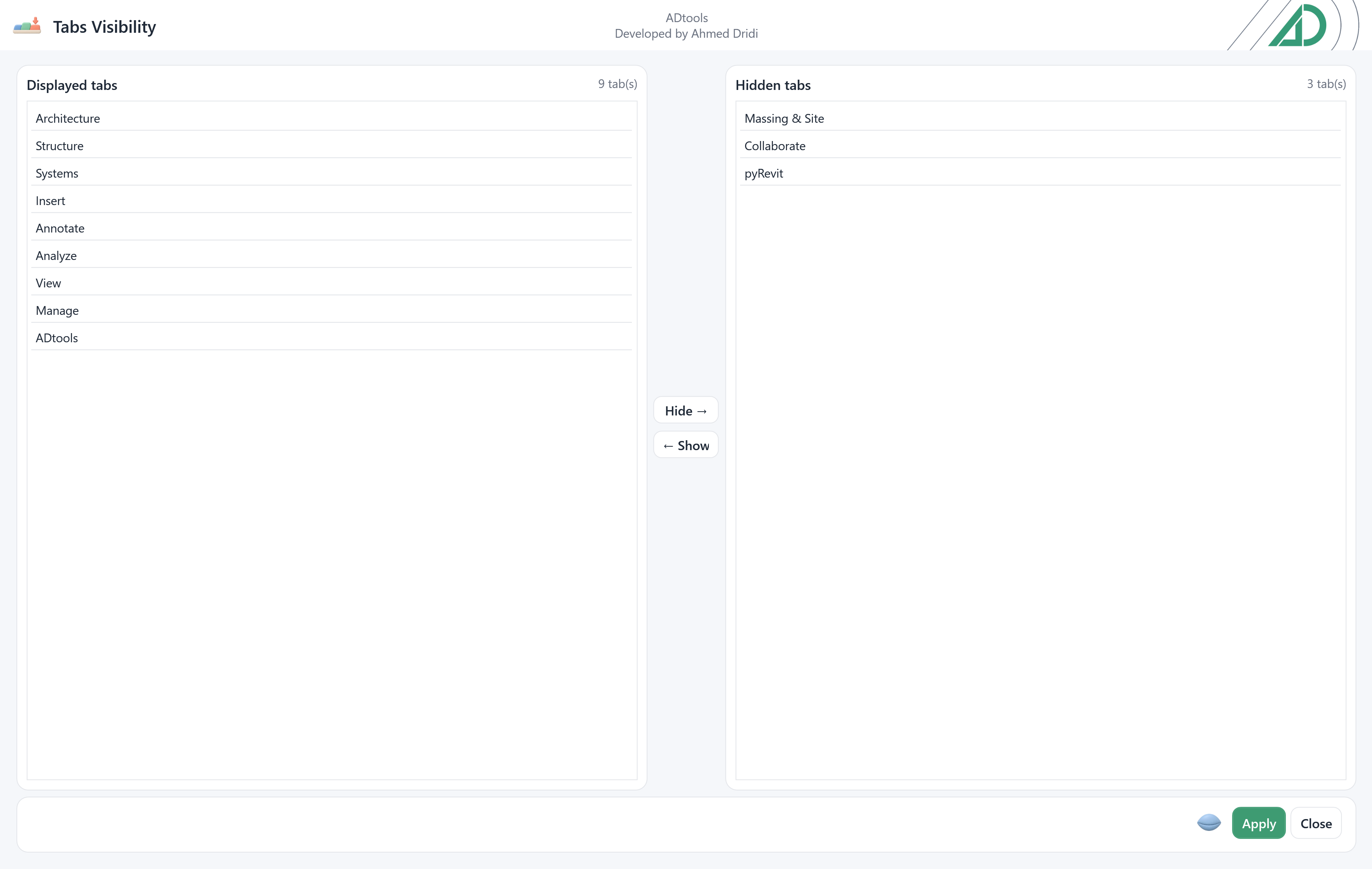
Move existing tabs from Displayed tabs to Hidden tabs with Hide, or restore them using Show and Show All.
Explicit application
Changes are staged in the dialog and committed with Apply. A layout belongs to the Revit session rather than an individual document.
Remembered layout
Hidden tabs are saved for the next session and hidden again after the project becomes stable. Restoring them requires an explicit user action.
Revit context preserved
Revit retains control of contextual and family tabs. Finish contextual operations before changing the session ribbon layout.
IN PRACTICE
From setup to result.
Prepare the lists
Keep Architecture, View, Manage and ADtools among the displayed tabs.
Hide unused tabs
Select tabs to organise and use Hide. Show and Show All return them to the displayed list.
Apply the layout
Run Apply to update the session ribbon and retain the hidden-tab choices for later use.
Riverside Office · session example
The preview shows nine displayed tabs and three hidden tabs. It illustrates ribbon organisation without changing project data.
The interface, in detail.
Current source-interface views populated with fictional project data. Previews were rendered outside Revit.
ADTOOLS IN YOUR OFFICE
Request a demo See ADtools on your projects.
A video demo built around your own cases. Get in touch to set up a call.