
Annotate a set of elements with the correct tag types.
ANNOTATION

TagPRO
WHAT THE TOOL DOES
Create or remove tags for filtered elements in the active view. Choose a tag type for each category, then control placement, orientation, leaders and whether existing tags are skipped.
A CONCRETE USE CASE
A need. A clear workflow.
Filter targets and set type, position and leaders before creation.
KEY FEATURES
Categories and types
Multiple-category selection, support for rooms and multi-category tags, and a tag type for each category.
Filters
Parameter and value rules using AND / OR logic to target only the required elements.
Placement
Orientation, leader, attached or free end, and top, bottom, left and right offsets in project units.
Control
Skip elements already tagged, manage arrowheads and use Untag to remove selected tags.
IN PRACTICE
From task to result.
Define targets
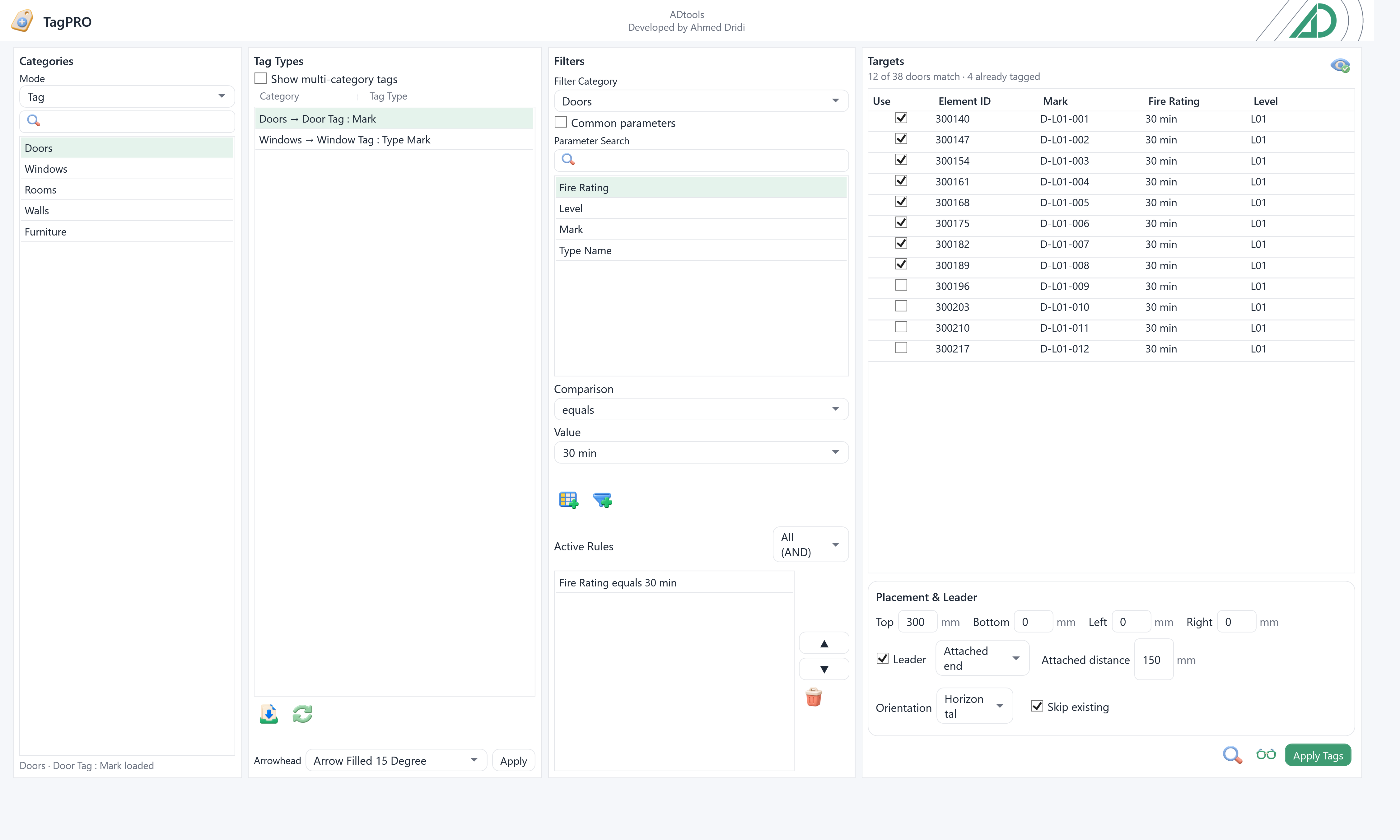
Choose a category and a tag type loaded in the project. Search, parameters, comparisons and AND / OR rules narrow down the relevant visible elements.
Set the layout
Define top, bottom, left or right offsets, horizontal or vertical orientation, and whether to use a leader. Choose an attached or free end and set its distance.
Place or remove
Check targets in the table, zoom or temporarily isolate them, then apply tags. Skip existing avoids retagging elements; Untag removes the targeted tags.
A practical example
In a floor plan, filter the doors to tag, choose their tag family and a shared offset. Check the retained doors before placing tags.
The tool in detail.
Illustrative example: the windows are populated with a fictional English-language Revit project, “Riverside Business Centre”.
ADTOOLS IN YOUR OFFICE
Request a demo See ADtools on your projects.
A video demo built around your own cases. Get in touch to set up a call.