
Prepare several deliverable formats with consistent file names.
EXPORT

ExportPRO
WHAT THE TOOL DOES
Batch-export selected sheets and views to PDF, DWG, DWF, IFC or images. Configure file naming and export settings, review pending sheet edits, and apply those edits when ready.
A CONCRETE USE CASE
A need. A clear workflow.
Select sheets, configure outputs and review the queue before export.
TRY ITInteractive example · fictional data
This browser illustration explains the tool’s principle. Model actions take place in Revit.
KEY FEATURES
Preview without leaving selection
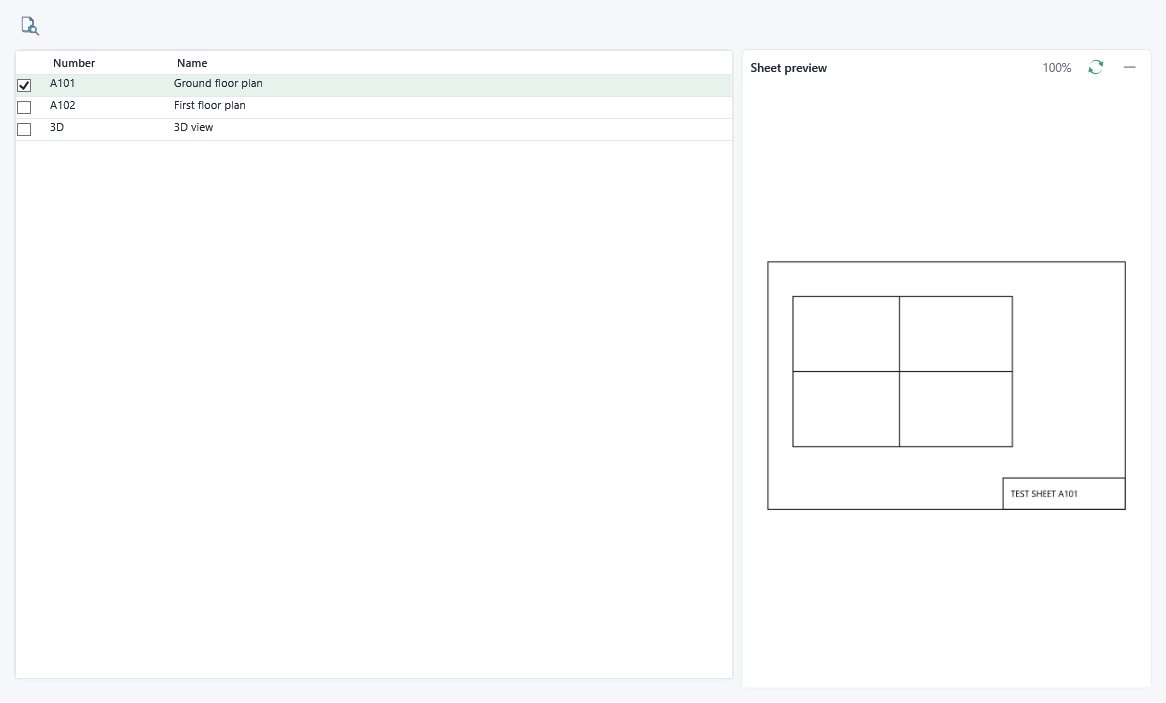
Open the collapsible active-sheet preview, zoom, pan, fit and refresh. Pane width is remembered locally. The previewed row is independent from export checkboxes; capturing a preview does not export the checked sheets.
Queue order under control
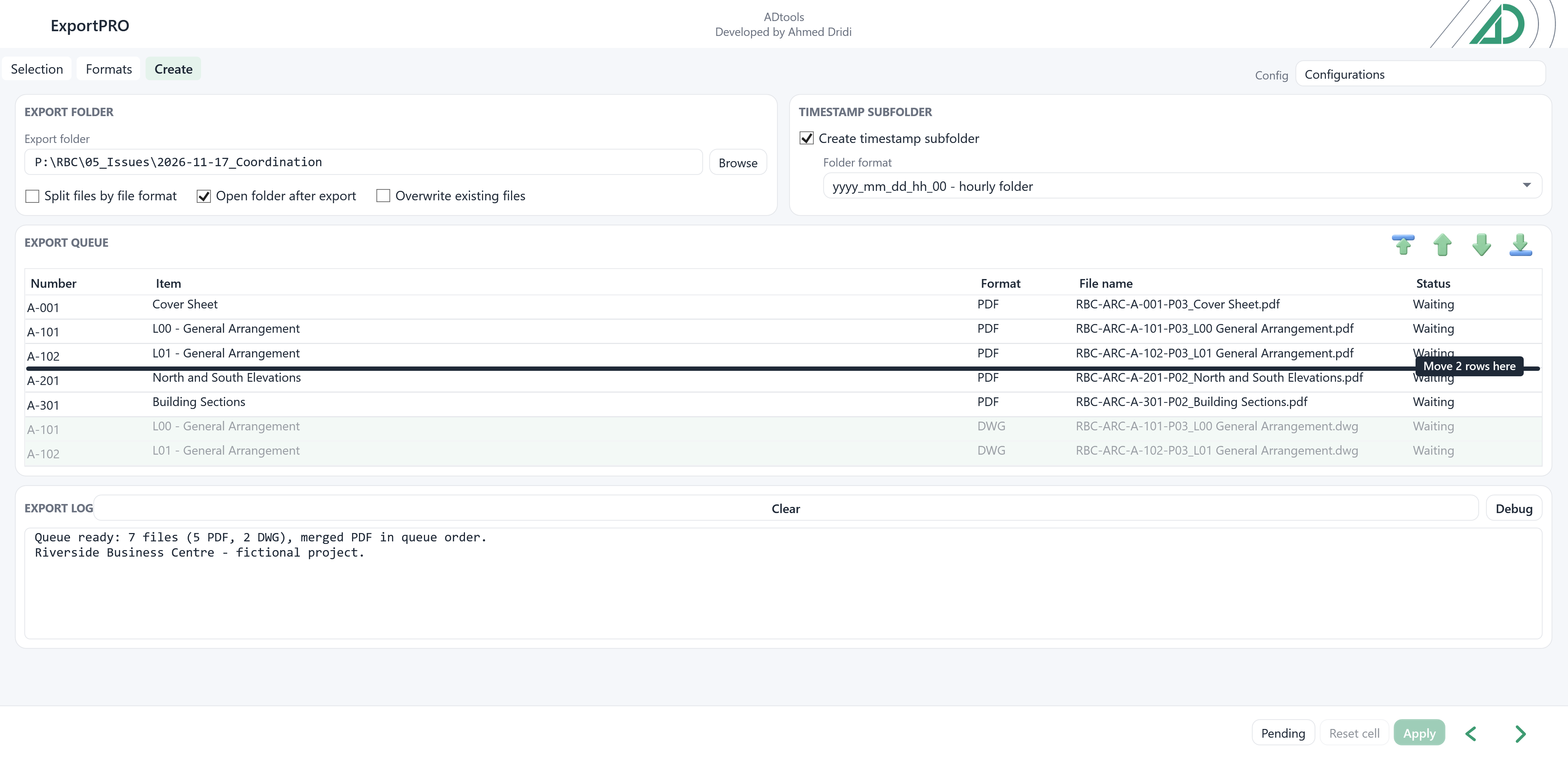
Four buttons above the export queue: move to top, move up, move down, move to bottom. They move the selected rows (Ctrl or Shift) together and keep their order. A queue sorted by a column is first fixed in the displayed order.
Formats
Batch export to PDF, DWG, DWF, IFC and image formats, depending on the selected views or sheets.
Smart naming
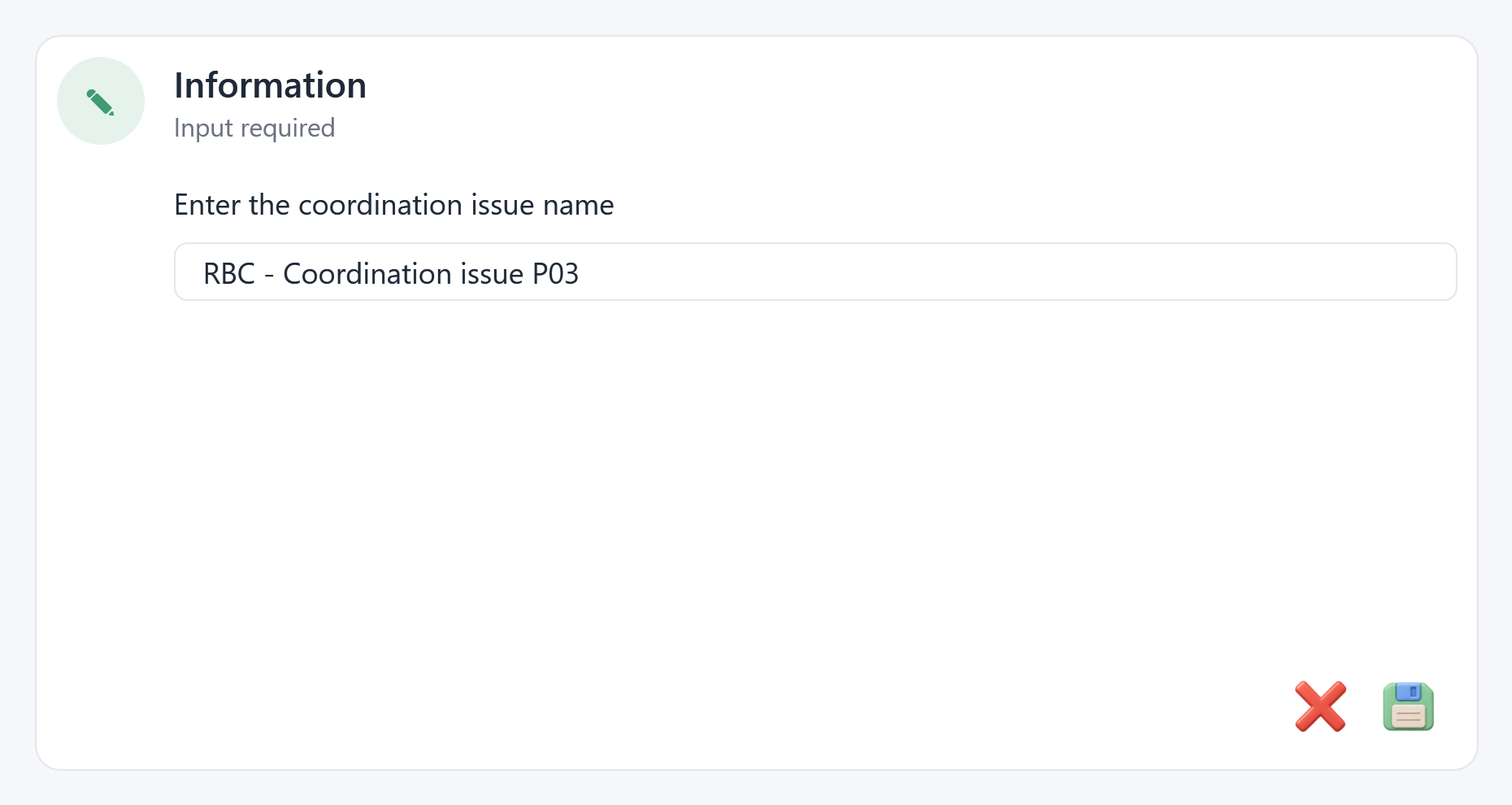
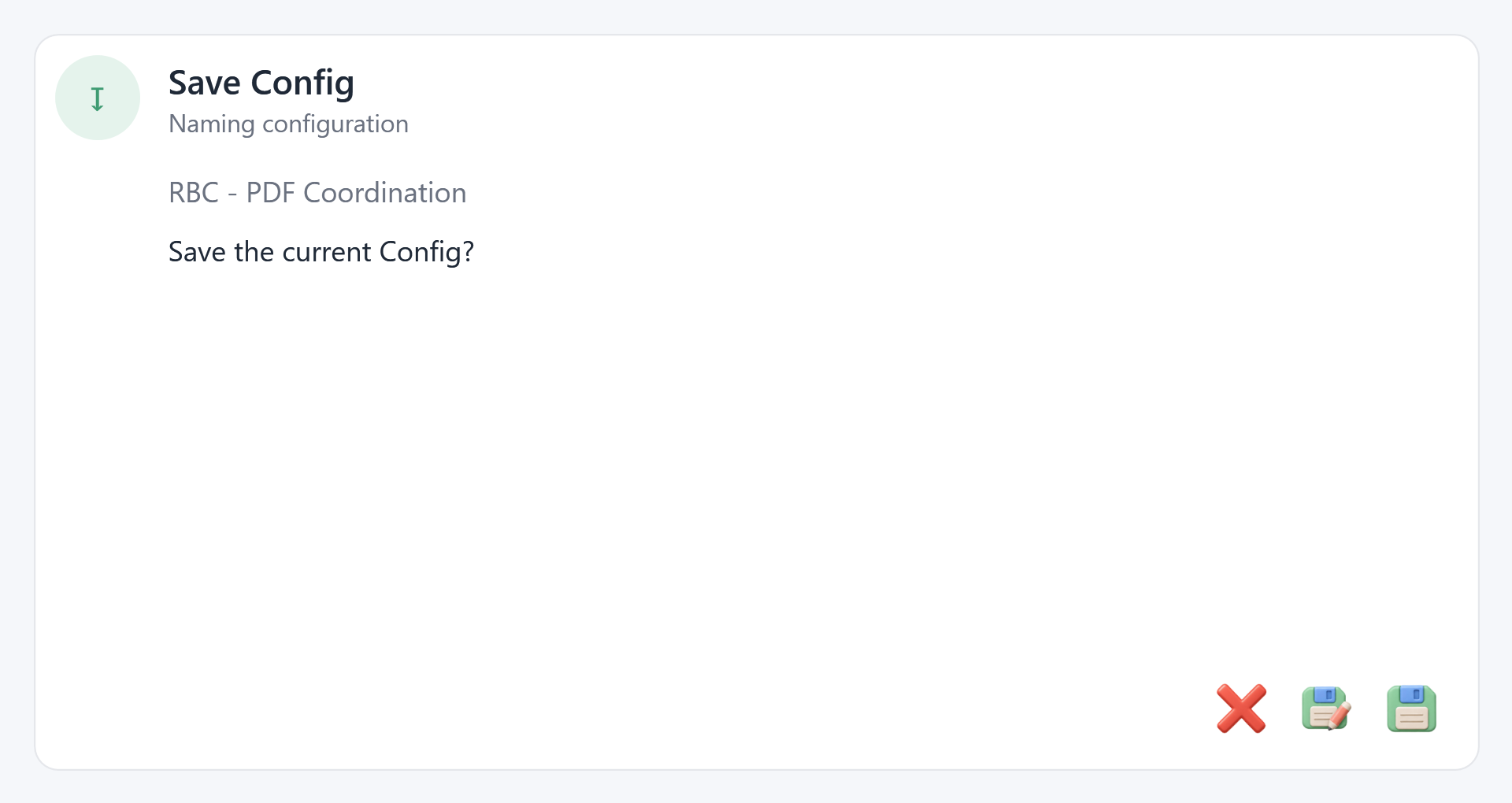
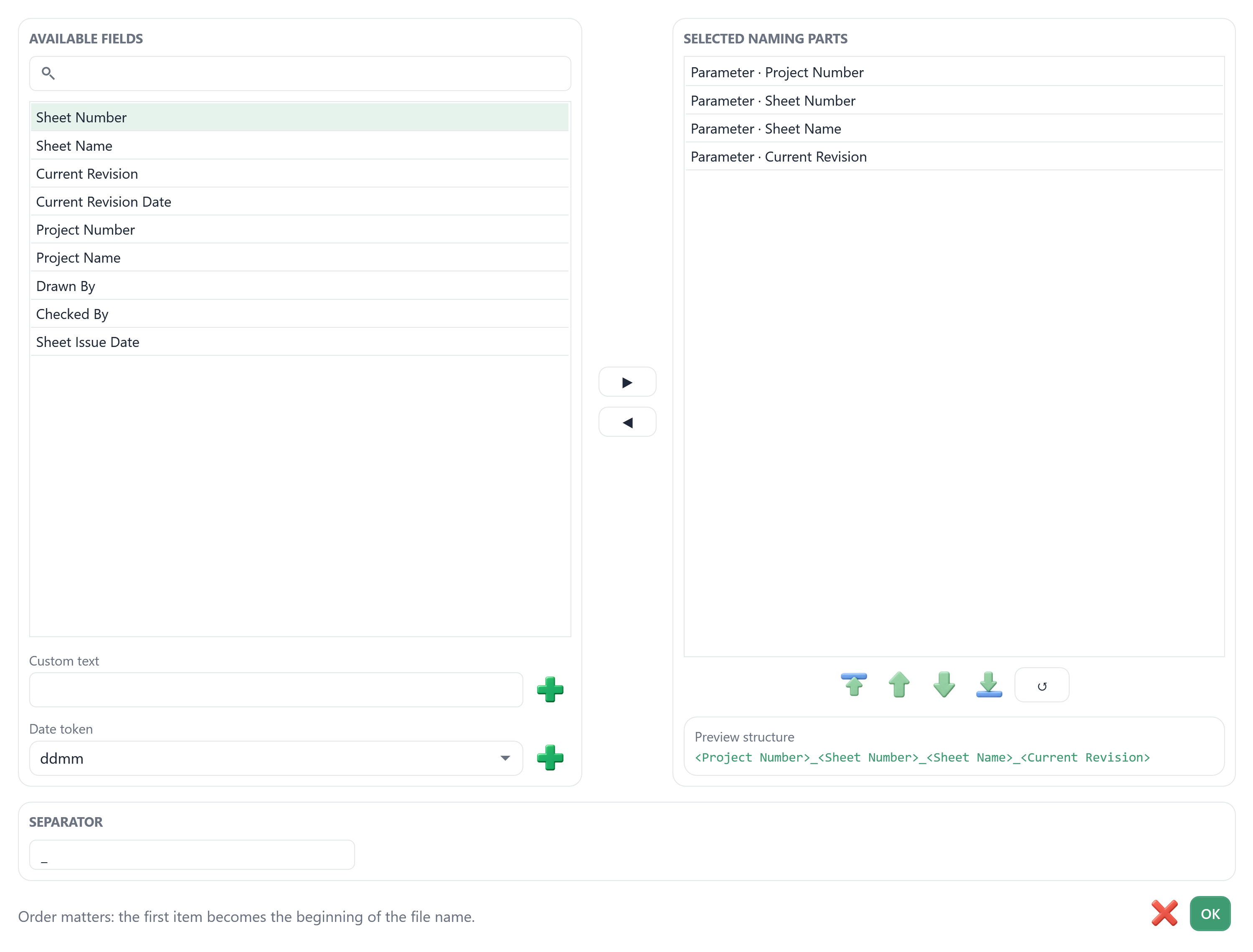
Build names from project, sheet and revision parameters, with reusable profiles and XML configuration import and export.
Drag and drop in the queue
Drag one row or a selection: a thick insertion line and a “Move N rows here” label show where they will go, the list scrolls by itself near the edges and Esc cancels. The export follows the queue order, merged PDF included.
Revisions and settings
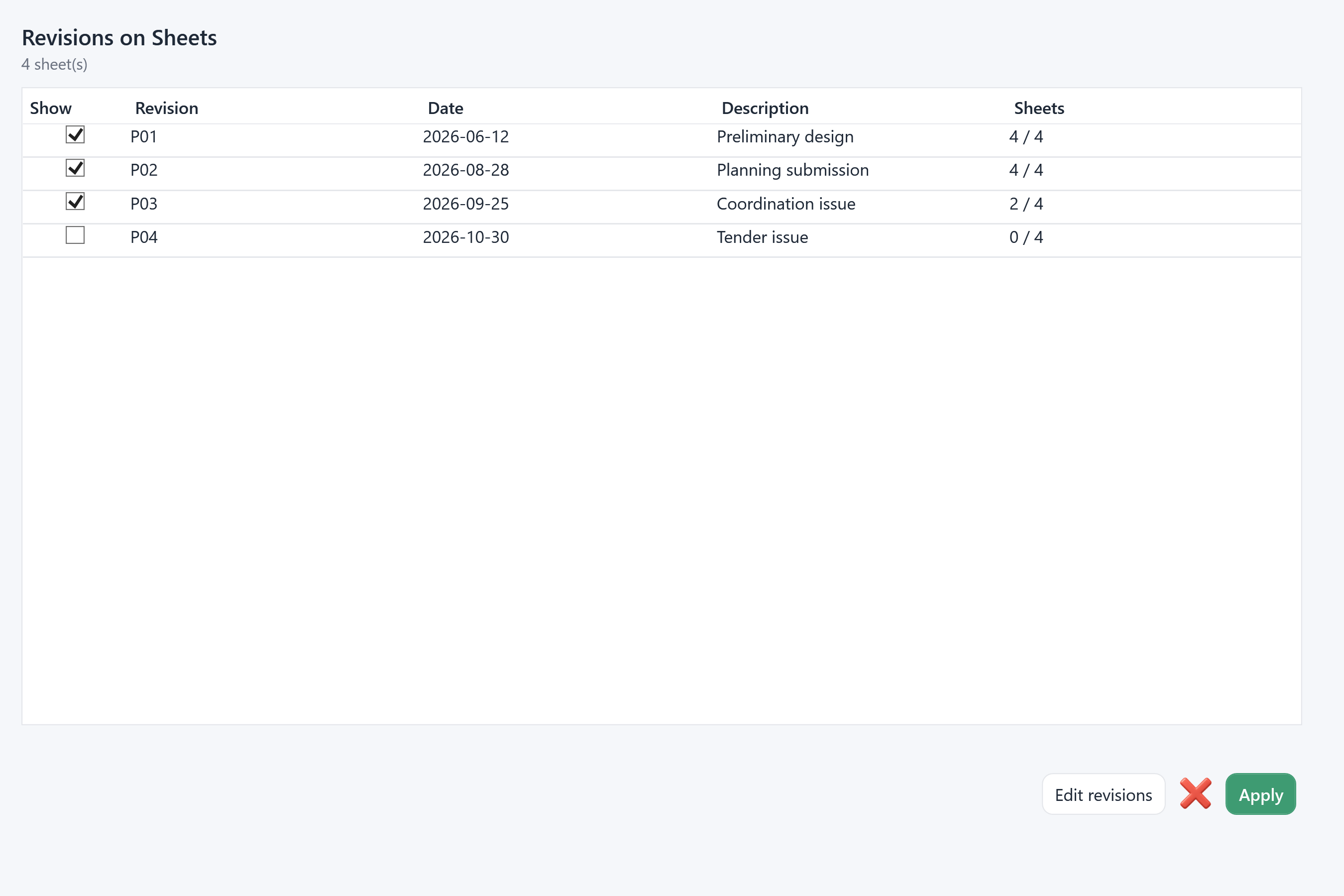
Manage sheet revisions, retain export settings and output folders, and log operations.
Project or sheet revisions
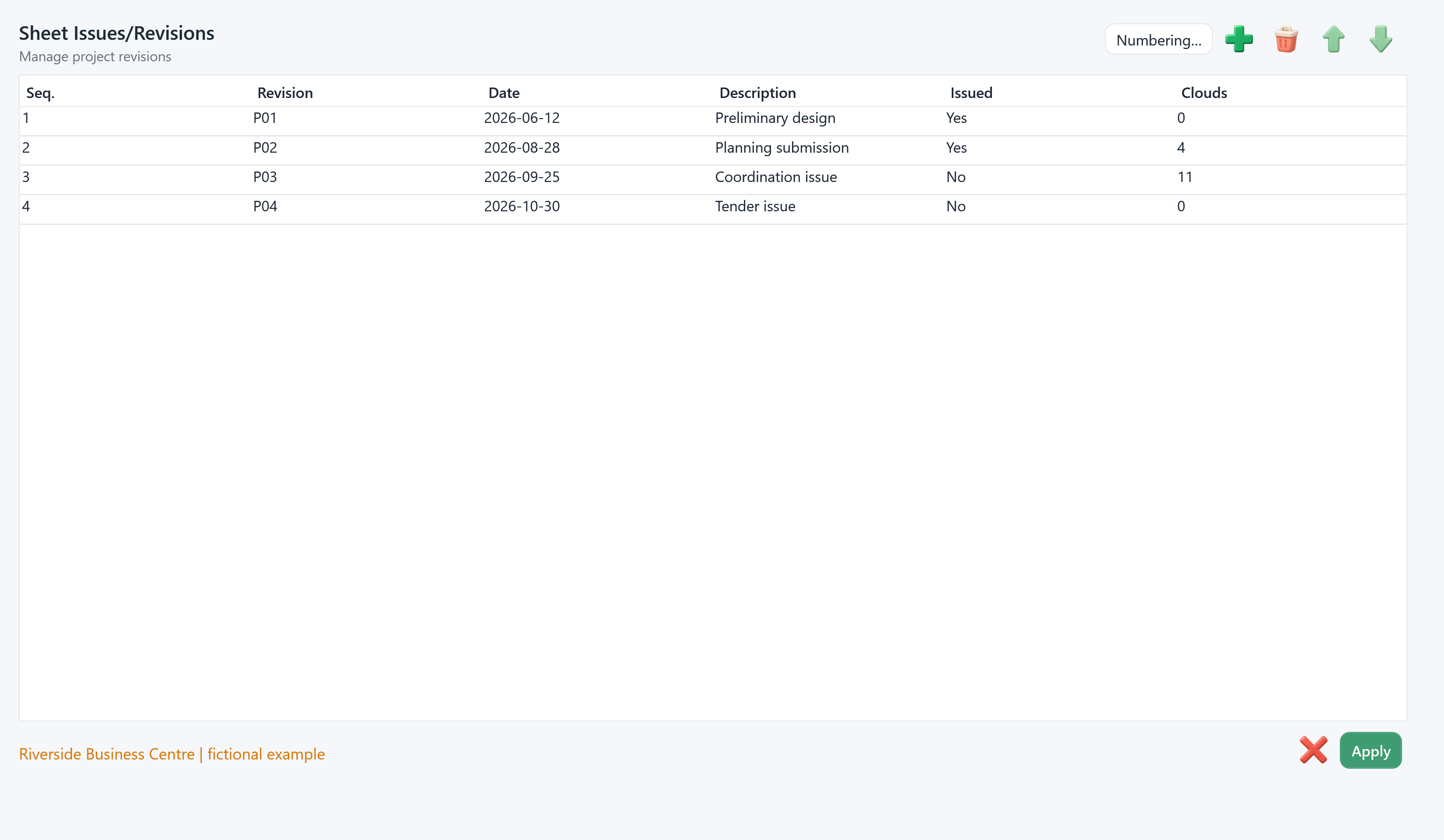
Choose numbering at project level or per sheet. With per-sheet numbering, the same revision can have a different displayed number on different sheets.
Alphanumeric sequences
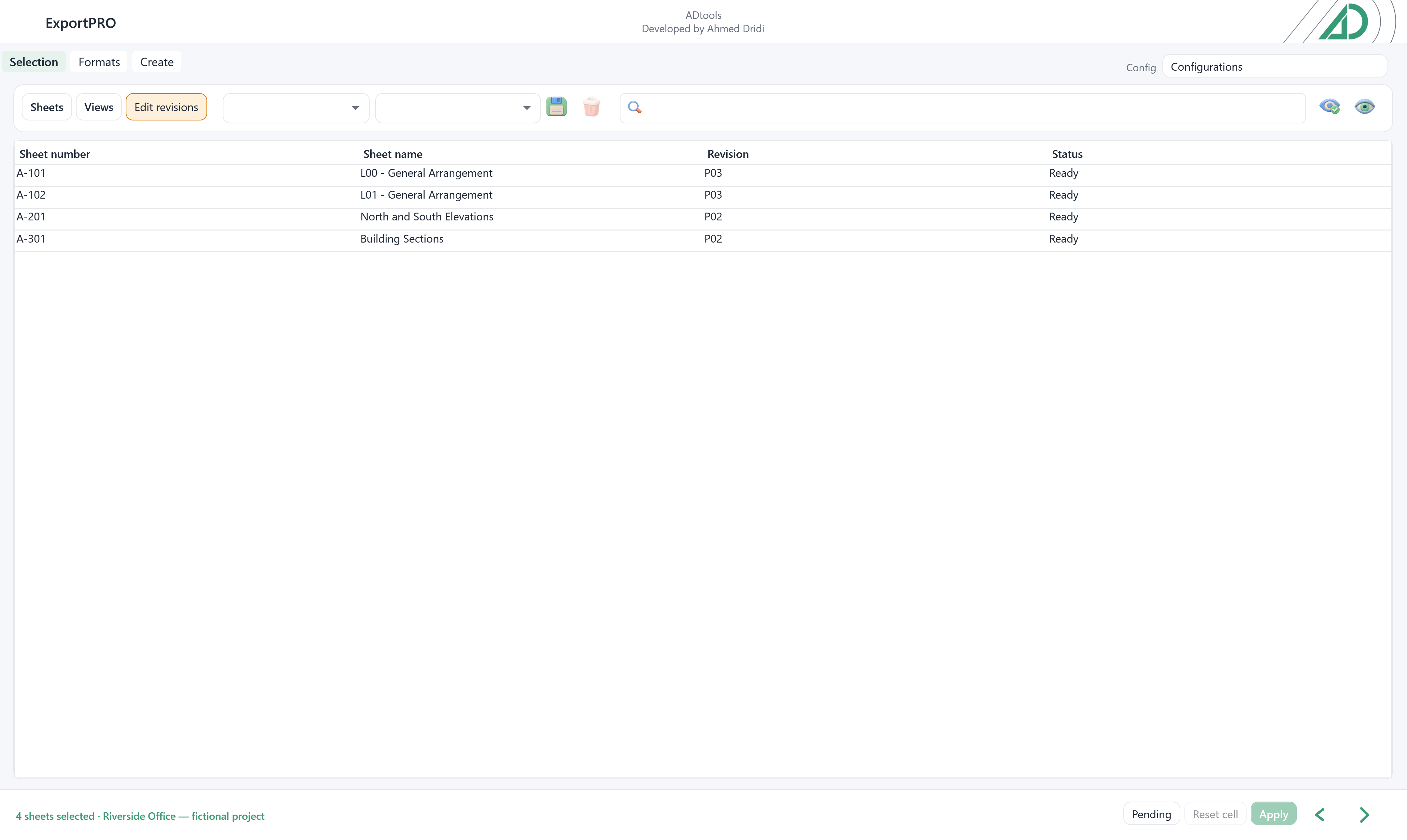
Edit labels such as A, B, C or P01, P02 on one comma-separated line. Pending values remain separate until applied.
Native IFC setups
Choose actual Autodesk configurations and options through the installed IFC module. Missing or incompatible modules are reported. Native PDFs are published without added branding.
Saved export selections and revisions
Load and reuse named sheet selections, review the naturally sorted export queue, and edit revision fields directly. Multi-line revision descriptions and an automatic preview of new revision numbers support preparation before export.
Reusable Autodesk IFC setups
The native Autodesk IFC editor handles session, existing and saved JSON setups. Confirming retains the complete setup for export; cancelling preserves the previous ExportPRO settings.
IN PRACTICE
From task to result.
Build the batch
Choose sheets or views to export. The table shows number, revision, name, type, scale and format; selections can be saved for future deliveries.
Prepare outputs
Enable the formats and settings offered by the interface. The name builder assembles relevant fields; configurations and revision settings help prepare a consistent batch.
Organise the export
Check the selected items and queue before starting. Configuration, naming and revision windows are shown below; available formats also depend on your Revit environment.
A practical example
For a drawing issue, select sheets, build a name containing the number and revision, then configure PDF and DWG outputs. Saving the configuration avoids entering these choices again for each issue.
The tool in detail.
Illustrative example: the windows are populated with a fictional English-language Revit project, “Riverside Business Centre”.
ADTOOLS IN YOUR OFFICE
Request a demo See ADtools on your projects.
A video demo built around your own cases. Get in touch to set up a call.