
Make model information visible in a view.
GRAPHICS

ADFilters
WHAT THE TOOL DOES
Colour elements by category and parameter rules in the selected view. Choose colours, patterns and transparency, then apply view filters or element overrides; an optional legend explains the result.
A CONCRETE USE CASE
A need. A clear workflow.
Map categories and parameters to colours, patterns and transparency.
KEY FEATURES
Scope
Work with elements visible in a view, placed in the model or loaded in the project, selecting model and annotation categories.
Filter rules
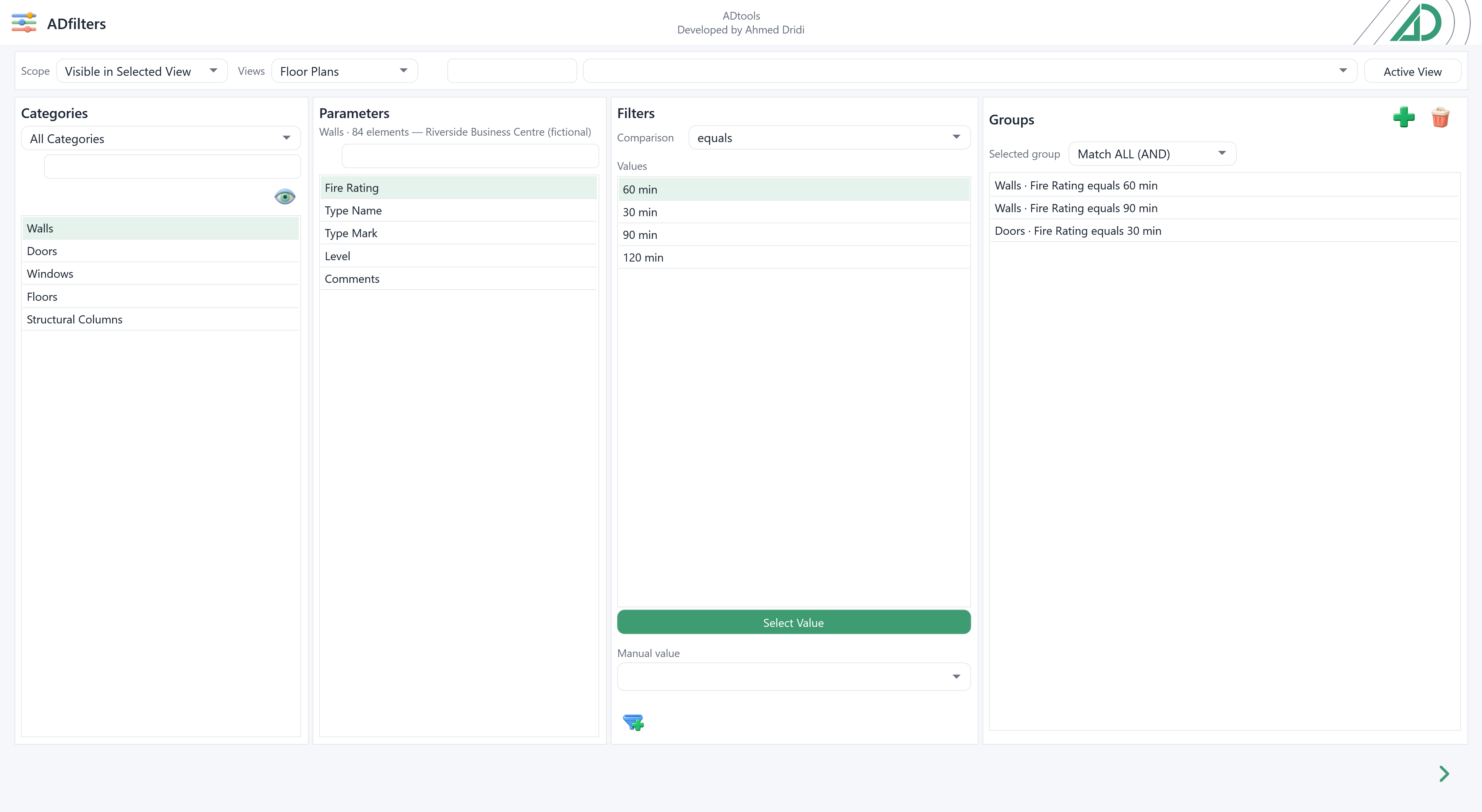
Conditions on parameters and values, Match ALL / AND or Match ANY / OR groups, and manual value selection.
Graphics
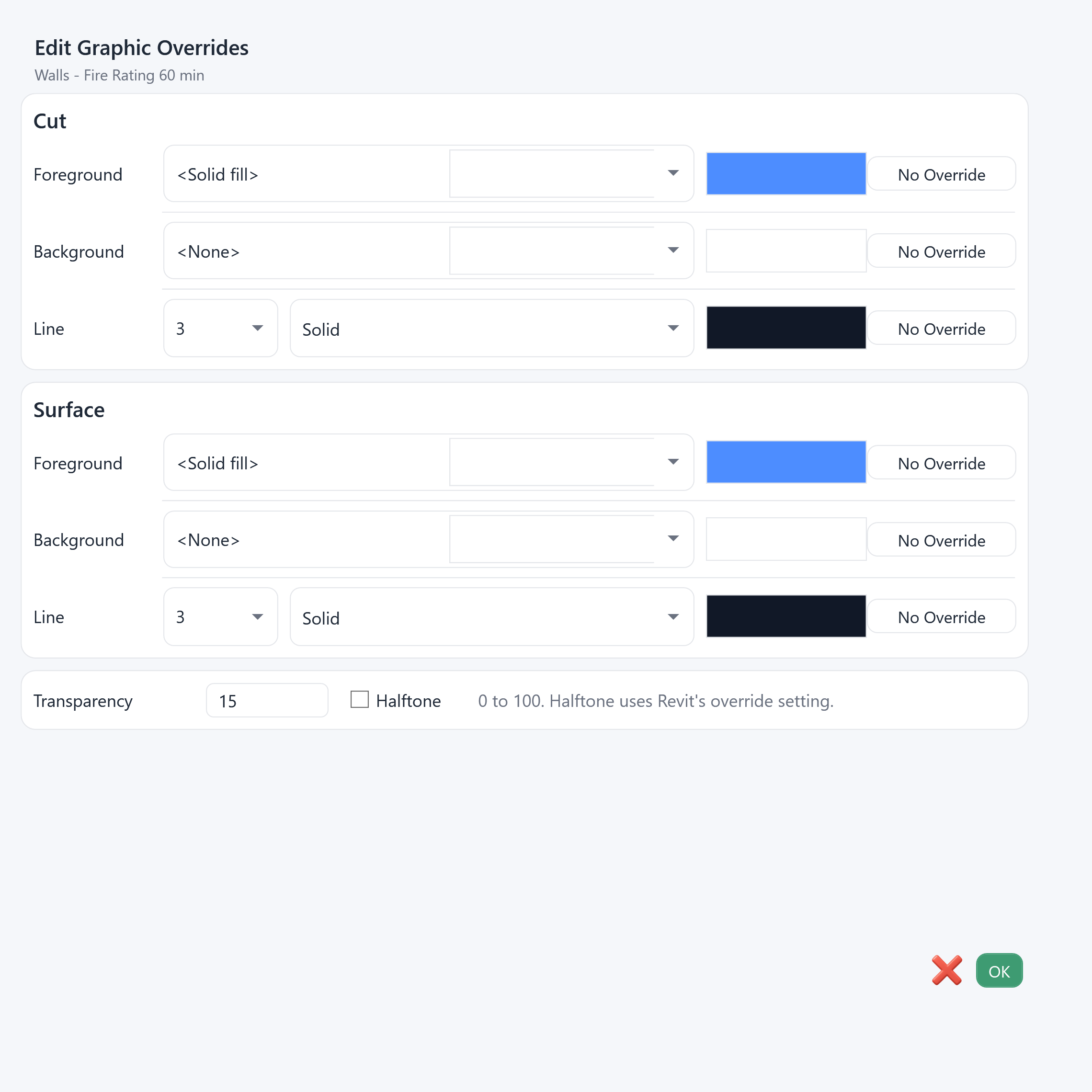
Cut and surface colours and patterns, line weights and patterns, transparency and halftone, with a preview for each row.
Revit output
Apply through view filters or graphic overrides, use the selected view or create a new one, save profiles and generate a legend.
Cut and surface previews
Inspect cut and surface graphics separately, with background first and transparent foreground hatches. Boolean parameters display as Yes/No; integer parameters remain numeric.
Distinct same-name parameters
Definitions, scopes and GUIDs identify parameters. Same-name parameters remain distinct in selection and rules.
Adjust the workspace
Resize the four panels of the first step with their separators to give more room to categories, parameters or values.
IN PRACTICE
From task to result.
Build groups
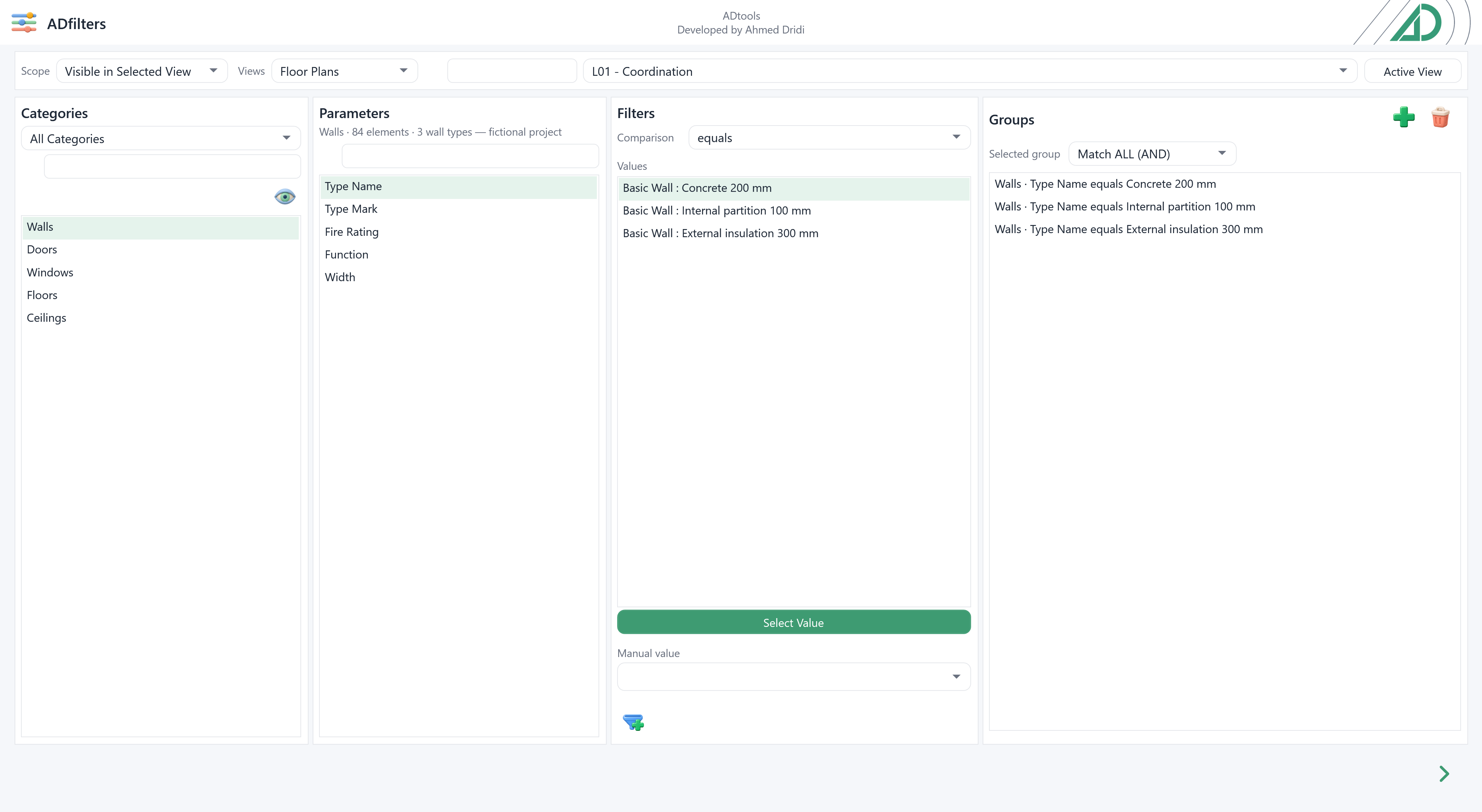
Select the scope, categories and parameters. Combine conditions with AND / OR logic or choose values to represent, then define the output view.
Set the graphics
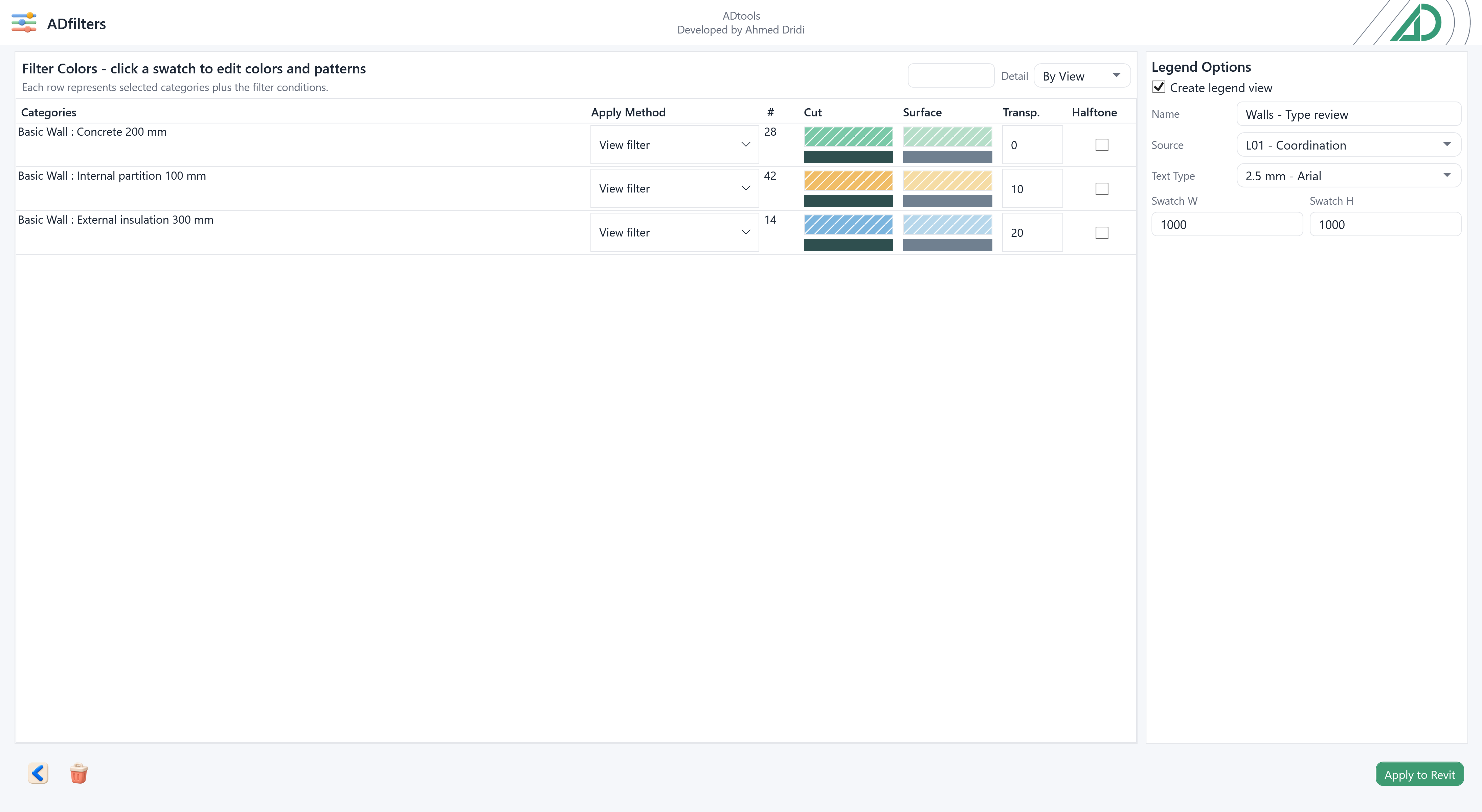
For each group, control cut and surface colours and patterns, lines, transparency and halftone. Graphic properties can be copied between rows.
Apply and create a legend
Apply settings to Revit using the chosen method. Prepare a legend with a name, text type and sample dimensions; removal commands let you remove filters or graphic overrides.
A practical example
To review model walls, group them by a type parameter, assign a colour to each value and prepare a review view with a legend.
The tool in detail.
Illustrative example: the windows are populated with a fictional English-language Revit project, “Riverside Business Centre”.
ADTOOLS IN YOUR OFFICE
Request a demo See ADtools on your projects.
A video demo built around your own cases. Get in touch to set up a call.