Find unnecessary items before cleaning a file.
MANAGER HUB

ADCleaner
WHAT THE TOOL DOES
Review cleanup candidates in a project or family, including unused views, templates, filters and other supported items. Select what to remove and review the cleanup results.
A CONCRETE USE CASE
A need. A clear workflow.
Choose the items to process and review the deletion result.
KEY FEATURES
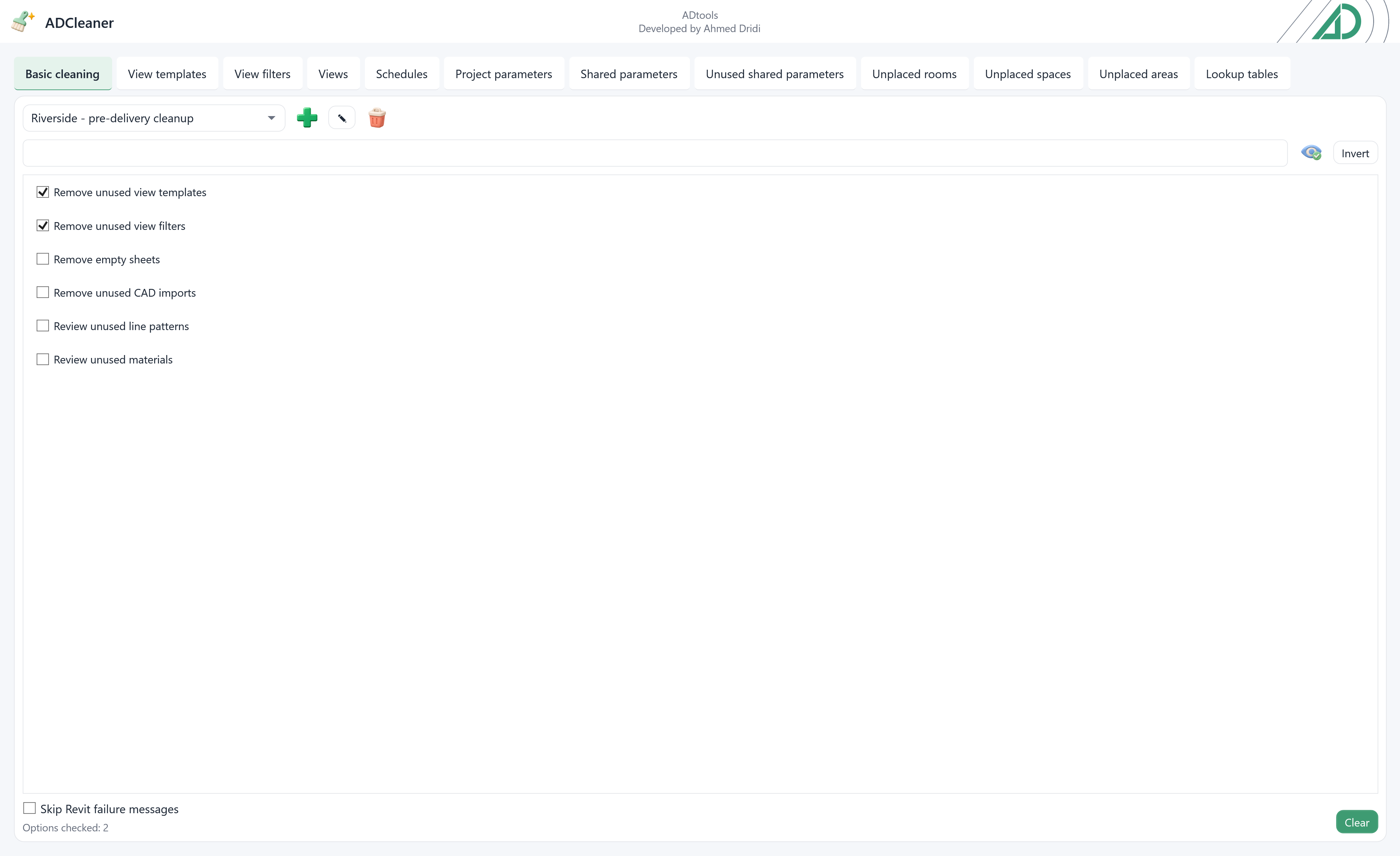
Cleanup configurations
Prepare project-specific cleanup actions, search available options and review the selection before execution.
Project views and resources
Review supported views, templates, filters, schedules, imports and other resources. Check their usage before deleting them.
Family parameters
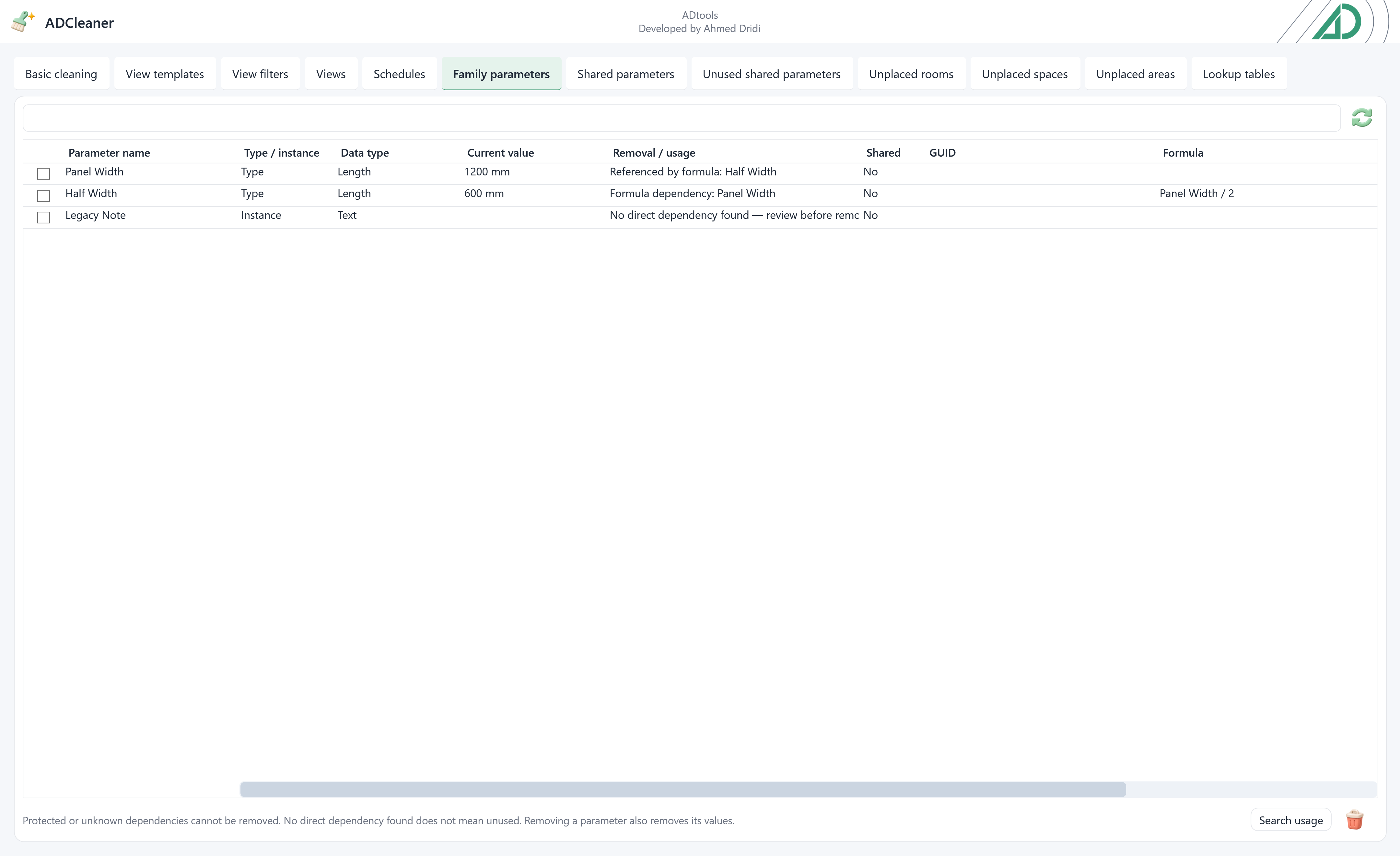
In the Family Editor, Family parameters opens directly. Inspect type/instance, values, formulas, associations, GUIDs and protections in a read-only inventory.
Controlled removal
Inspect usage and confirm selected parameters. Protected or unresolved dependencies block deletion; no direct dependency found does not mean unused. The tool does not edit formulas or automatically reload the family.
IN PRACTICE
From setup to review.
Prepare a configuration
In Basic cleaning, choose the actions relevant to project delivery and review the selected options.
Inspect usage
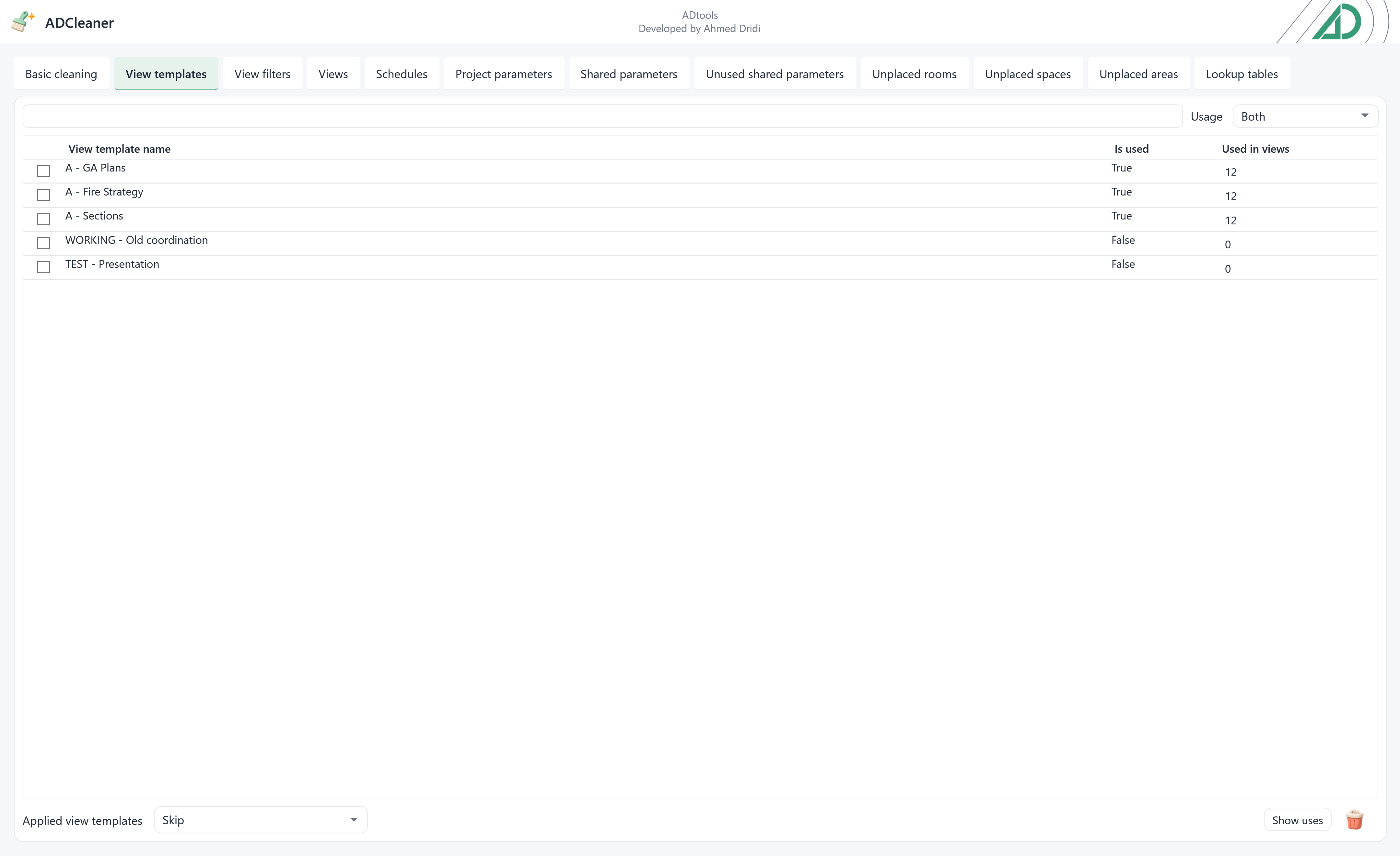
In View templates, distinguish active templates from obsolete working templates. Use Show uses to inspect their references.
Clean and review
Select the intended items, run the corresponding removal action and read its results before continuing.
Riverside Office · fictional example
A - GA Plans, A - Fire Strategy and A - Sections are used. WORKING - Old coordination and TEST - Presentation illustrate two unused candidates to review before removal.
The interface, in detail.
High-resolution views rendered from the source interface with fictional English project data. These previews were prepared outside Revit.
ADTOOLS IN YOUR OFFICE
Request a demo See ADtools on your projects.
A video demo built around your own cases. Get in touch to set up a call.