Understand a model before a review.
MANAGER HUB
ADashboard
WHAT THE TOOL DOES
Review project health, warnings and model inventories, compare snapshots and export reports. Choose a warning occurrence for a framed 3D inspection; linked elements are precisely selected, but other link contents may remain visible.
A CONCRETE USE CASE
A need. A clear workflow.
Bring checks together and compare project snapshots.
KEY FEATURES
Project overview
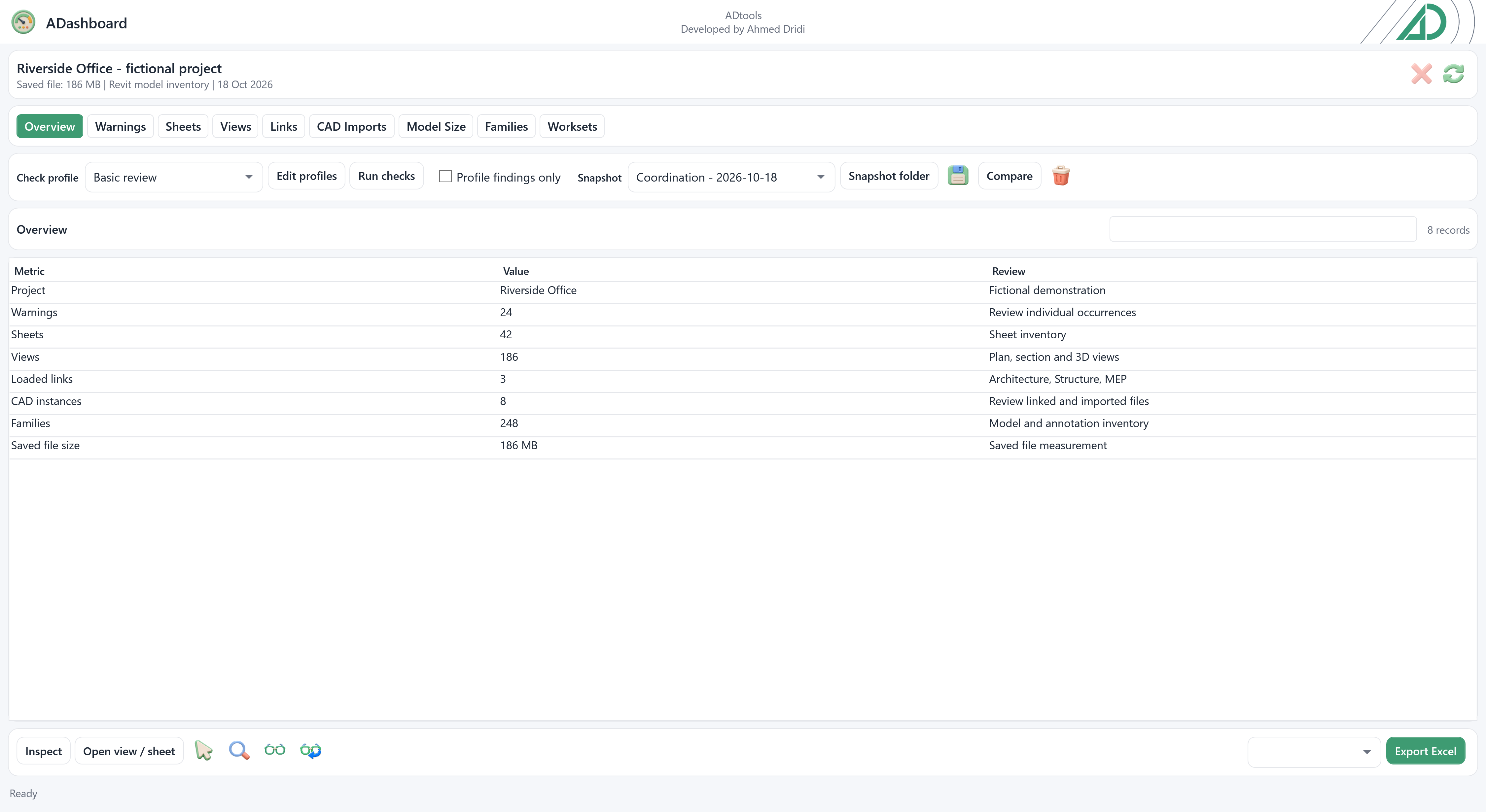
Review indicators and inventories for sheets, views, links, CAD imports, families and model categories. File size refers to the saved RVT file.
Warnings and inspection
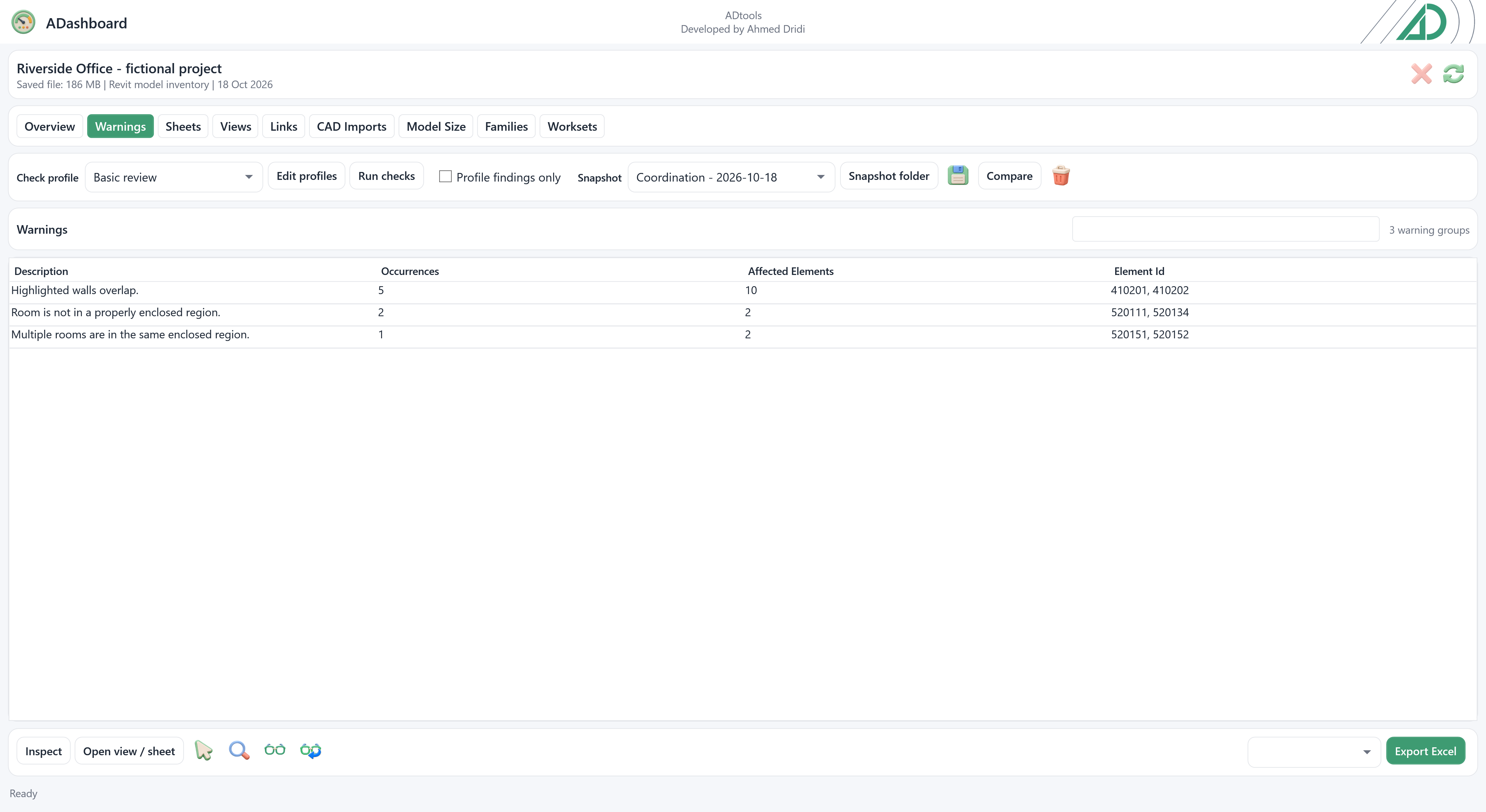
Expand warning types, occurrences and affected elements. Selection, zoom and 3D inspection actions help review eligible cases.
Profiles and snapshots
Use inventory or review profiles, configure checks and save a snapshot to compare results between project stages.
Excel reporting
Export the current section or a complete report. Inventories describe the model: an unplaced view or unused family is a review candidate, not automatically an error.
IN PRACTICE
From setup to review.
Refresh the project
Run Refresh to collect the active model data and display the Riverside Office indicators.
Inspect an indicator
Open Warnings to review groups and occurrences, then inspect the affected elements in Revit.
Keep the review
Choose a profile, save a snapshot and export an Excel report for the next coordination review.
Riverside Office · fictional example
The demonstration shows 42 sheets, 186 views, three links and 24 warnings. These fictional values illustrate how to read the dashboard.
The interface, in detail.
High-resolution views rendered from the source interface with fictional English project data. These previews were prepared outside Revit.
ADTOOLS IN YOUR OFFICE
Request a demo See ADtools on your projects.
A video demo built around your own cases. Get in touch to set up a call.