
Harmonise legend-component graphics without replacing them with images or linework.
GRAPHICS
LegendsPRO
WHAT THE TOOL DOES
Work with native components in legend views. Compare their Before/After graphics, prepare cut or surface overrides, then apply only the changes belonging to checked rows.
A CONCRETE USE CASE
A need. A clear workflow.
Select a component, prepare its graphics, compare Before/After and check the rows to apply.
KEY FEATURES
White and no override
Explicit RGB white remains a real colour, separate from No Override. Resetting a group propagates to the native change. The result depends on component representation: a cut override may not appear in projection.
Native components
Choose an existing legend, or create a legend and add native components. Filter its table by category, family or type.
Permanent Before / After
Selecting a row displays two isolated renders of that component. Selection alone does not check it for Apply.
Independent graphics drafts
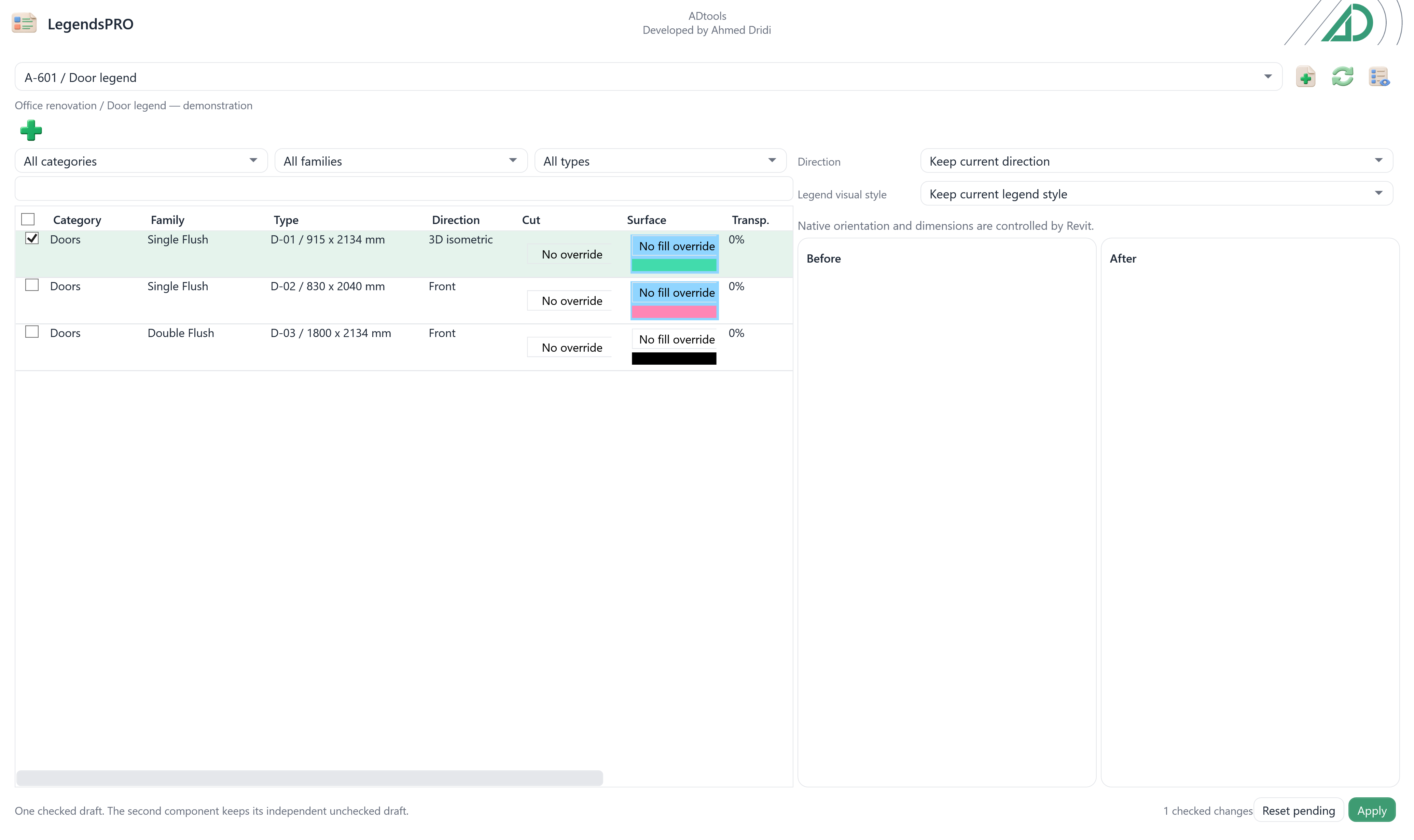
Cut and Surface cells open graphic settings. Edited cells turn blue; each component keeps its own independent draft.
Checked-only application
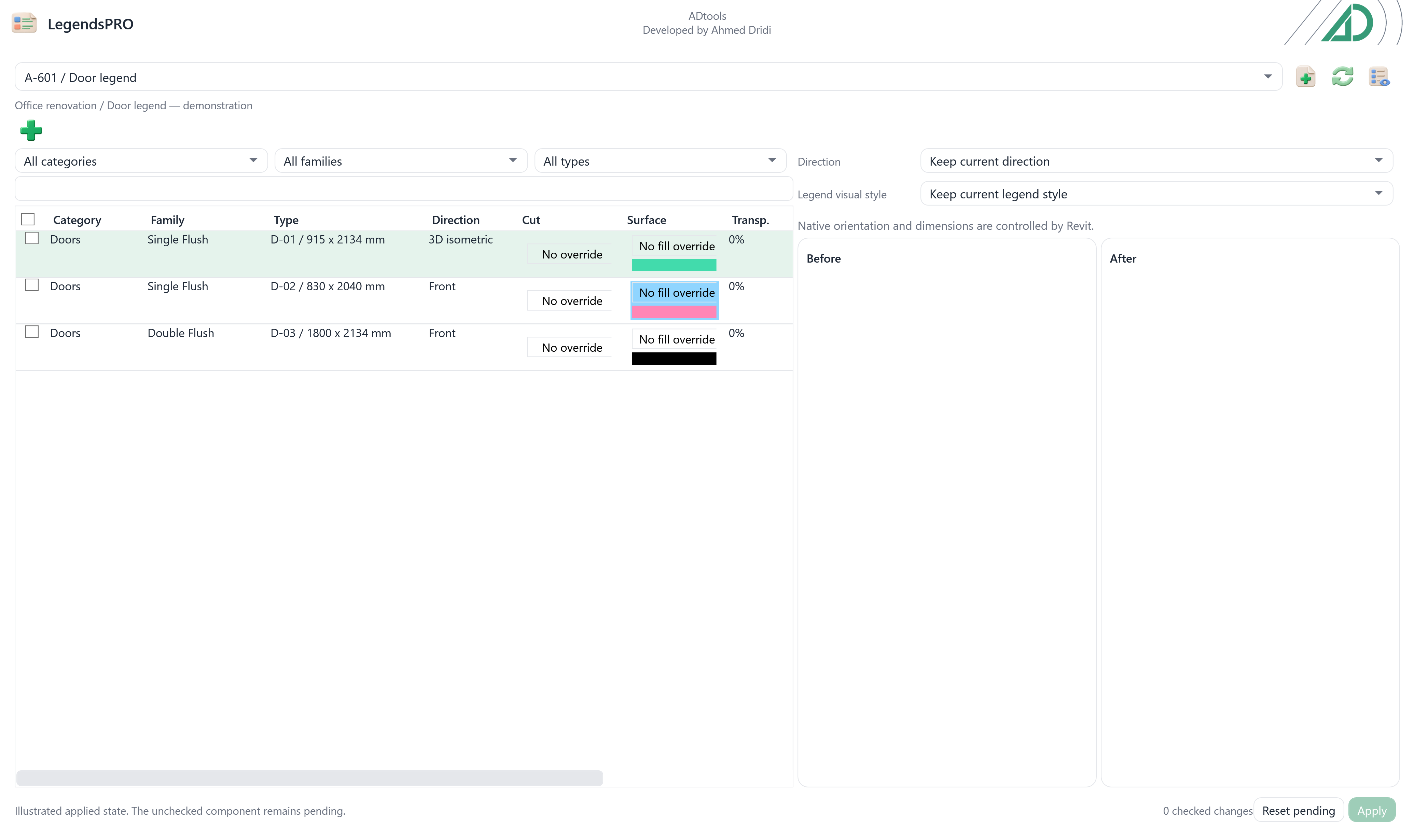
Check the rows to process, then click Apply. Unchecked drafts are preserved. Reset pending discards local edits that have not been applied.
Native settings
Direction and host length depend on the capabilities actually exposed by Revit. Visual style affects the whole legend rather than one component.
Retain the originals
The native workflow retains component IDs. Changes form one undoable operation; reopening reads the actual Revit graphics.
IN PRACTICE
Choose
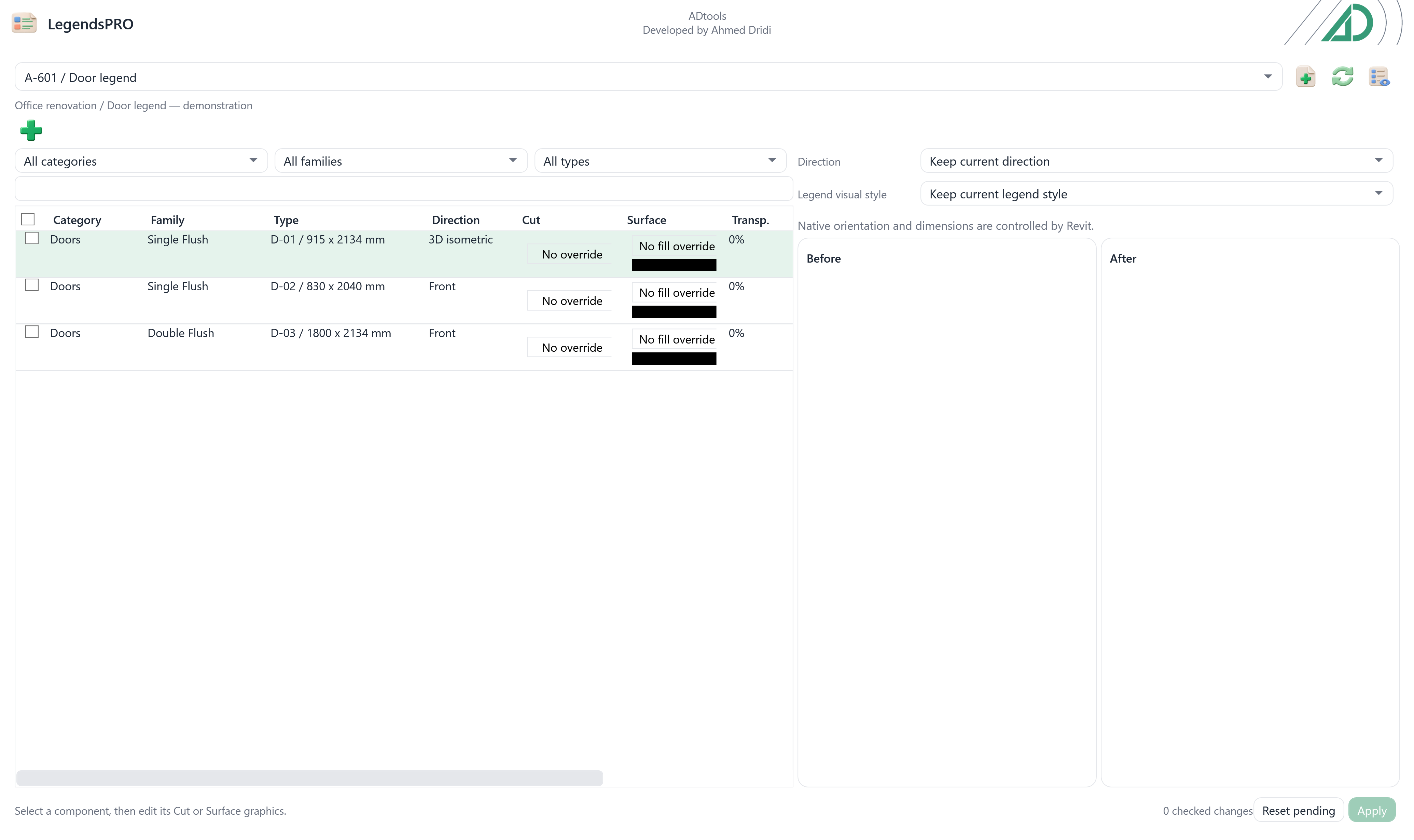
Open A-601 / Door legend and select a door row to inspect its render.
Compare
Change the first door’s outline colour. Compare the original black lines and proposed green outline.
Apply checked rows
Check the first door and apply. A second unchecked door keeps its independent draft.
The interface, in detail.
Current native interface, rendered outside Revit with demonstration data.
ADTOOLS IN YOUR OFFICE
Request a demo See ADtools on your projects.
A video demo built around your own cases. Get in touch to set up a call.