
Harmonise level presentation in sections and elevations.
VIEWS
LCO
WHAT THE TOOL DOES
Align visible level lines with the crop boundary in elevations and sections. Choose an offset in project units and process selected views, or the active view if none are selected.
A CONCRETE USE CASE
A need. A clear workflow.
Set the offset and align visible level lines to the view crop.
KEY FEATURES
Choose multiple views
Search and filter elevation and section views, then check the views to process. The bulk-selection control affects displayed rows before processing with the existing offset engine.
Elevations and sections
The tool works in supported views with an active crop region. It does not change level elevations.
Project-unit offset
Enter a value in the project’s displayed units and apply it to the 2D extents of visible levels.
One or several views
Process views selected in Revit. If no views are selected, LCO uses the supported active view.
Remembered setting
The offset is saved per unit for subsequent use. The operation report identifies processed views and cases that could not be applied.
IN PRACTICE
From setup to review.
Prepare the views
Enable Crop View in an elevation or section, or select several target views.
Enter the offset
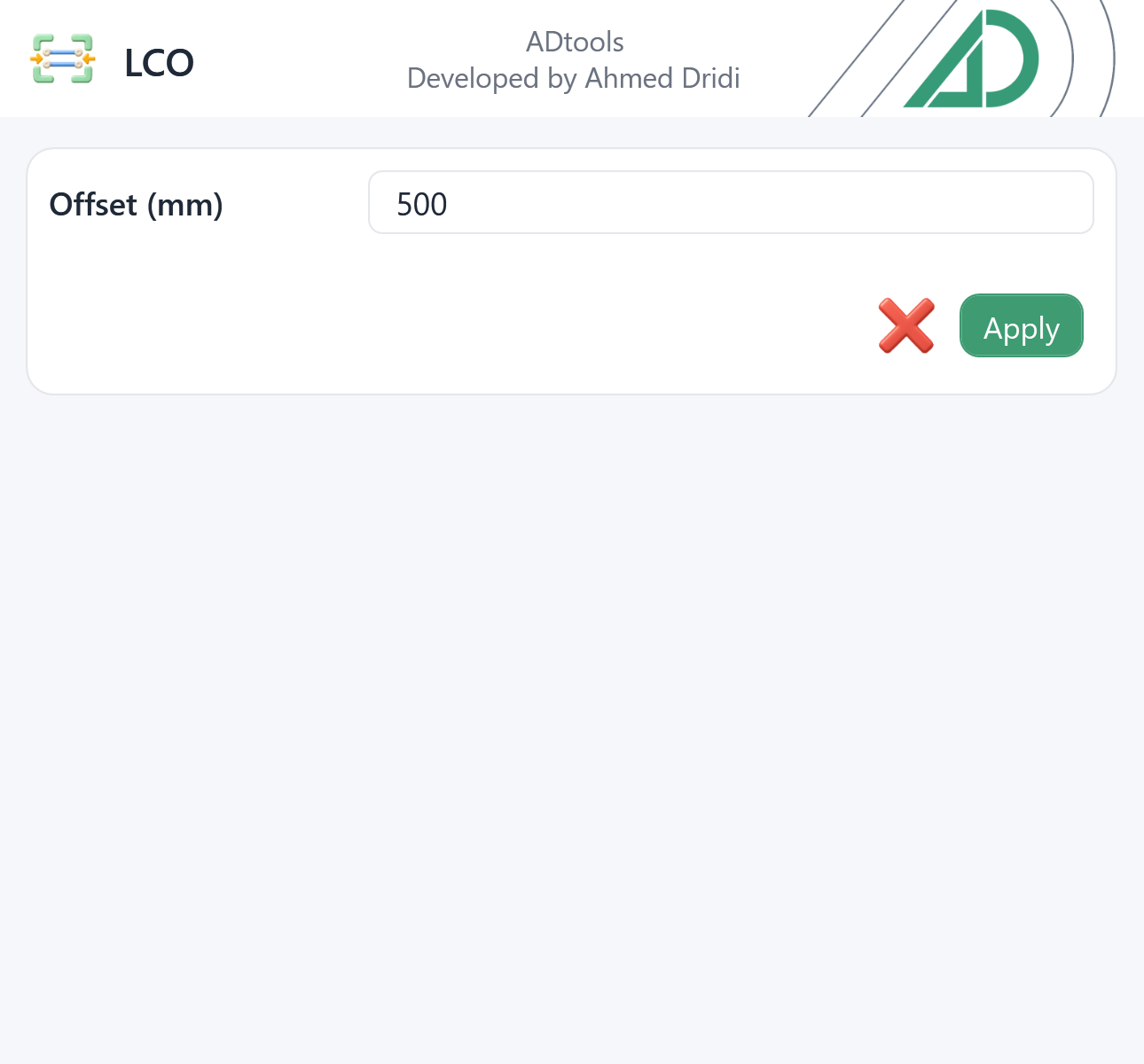
The example uses a 500 mm offset. Check the unit label before applying the value.
Apply and review
Run Apply, inspect the level extents in the processed views and read the operation report.
Riverside Office · fictional example
A 500 mm setting illustrates level-line adjustment for a set of sections. The operation changes their 2D representation in views without changing project level heights.
The interface, in detail.
High-resolution views rendered from the source interface with fictional English project data. These previews were prepared outside Revit.
ADTOOLS IN YOUR OFFICE
Request a demo See ADtools on your projects.
A video demo built around your own cases. Get in touch to set up a call.