
Apply one logic to a set of elements.
MANAGER HUB

ADrools
WHAT THE TOOL DOES
Build Revit production rules with conditions and actions. ADrools combines parameters, relationships, geometry, graphics and sequential numbering in a clear workflow: define, preview, then apply the changes you choose.
A CONCRETE USE CASE
A need. A clear workflow.
Build conditions and actions, inspect the preview, then apply the selected rows.
KEY FEATURES
Reorder rules
Drag rule rows to change execution priority. Double-click to edit a cell or open conditions and actions. Preview remains separate from applying changes in Revit.
Manage V/G filters
Inspect ADrools-owned filters and their assignments. Remove assignments only from the active view, or delete definitions from the project after review and confirmation. External filters are protected; a retained rule can recreate its filter on a later run.
Structured conditions
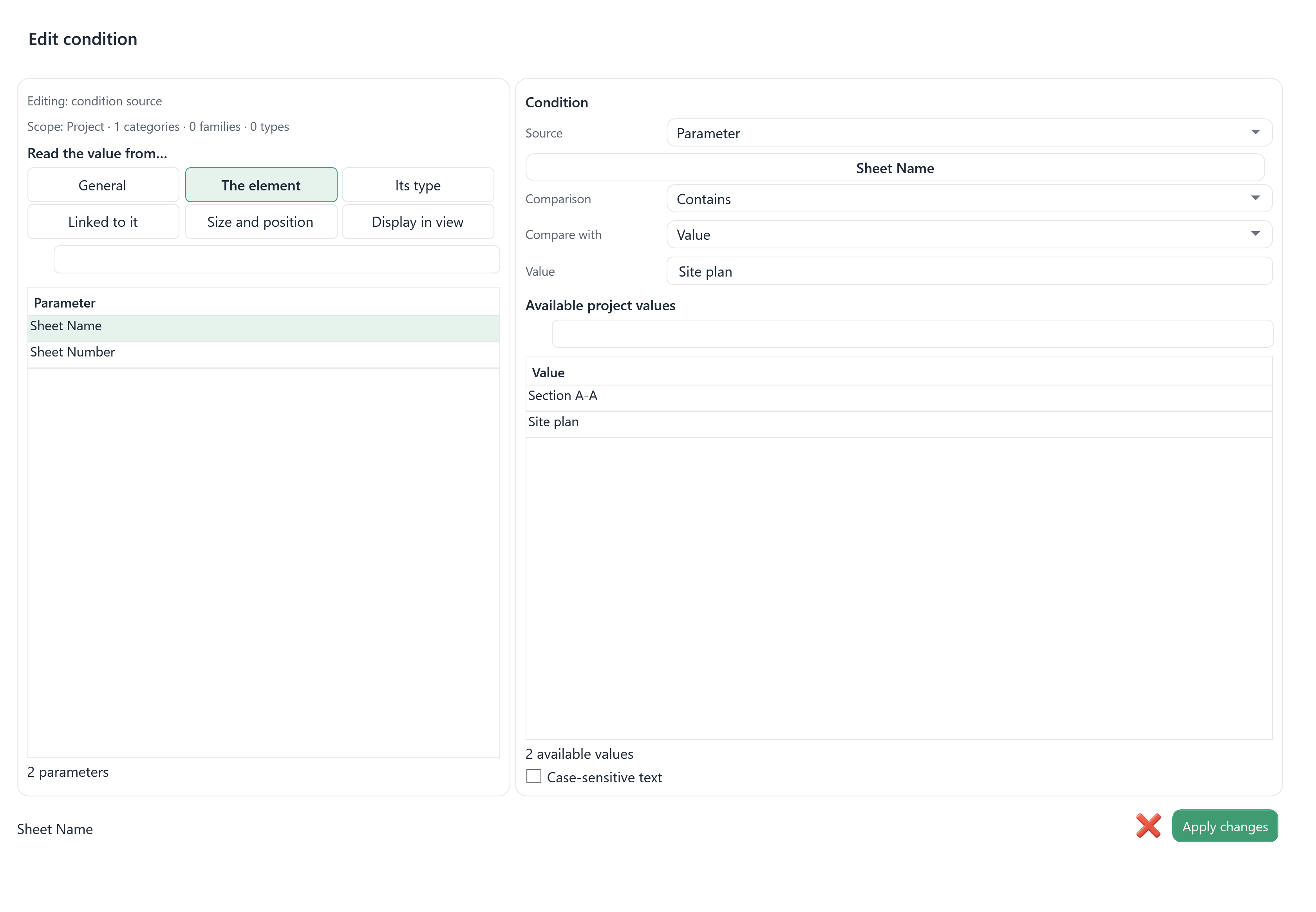
Combine IF, ELSE IF and ELSE with nested AND, OR and NOT groups. Set a separate scope using project, active view, selection, categories, families or types.
Six data sources
Explore Properties, Instance, Type, Related, Geometry and Graphics. Compare constants, parameters or typed expressions using project units and actual available values.
Twelve actions
Set, copy, concatenate, replace or calculate values. Add mappings, sequential numbering, validation reports, element graphics or filter graphics.
Numbering controls
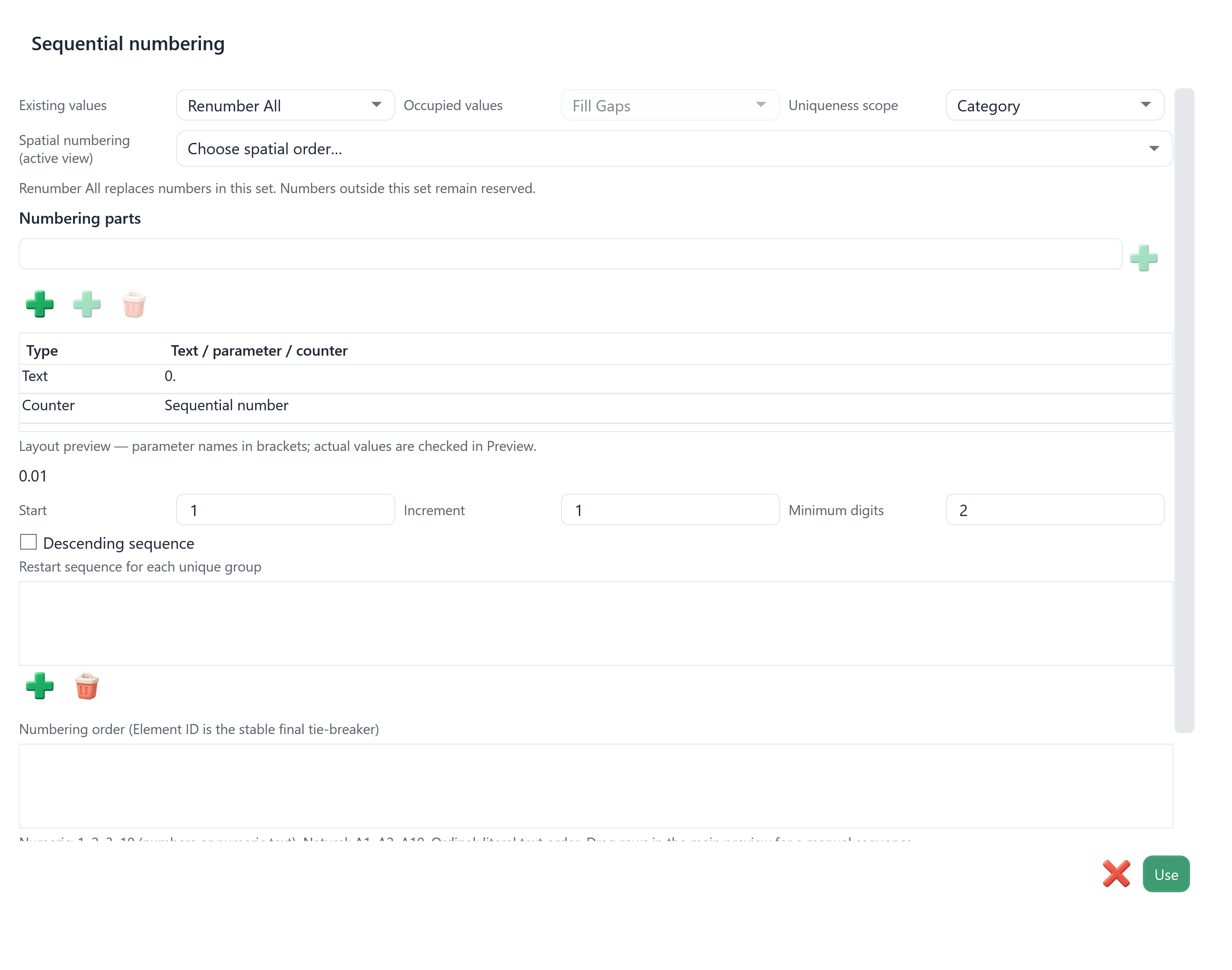
Set the counter start, increment, padding, grouping and spatial order in the active view. Combine it with text and parameter parts, then review reserved numbers and exclusions.
Inspect before applying
Review current and proposed values, diagnostics and type impacts. Select elements, inspect them in 3D and check the proposals you need. Opening or editing a rule does not change Revit.
Explicit application
Apply revalidates the preview and commits the checked batch atomically. A rejected write rolls back the batch. JSON library save/import remains separate from model changes.
Compose the numbering directly
Build an ordered list of Text, Parameter and Counter parts. Use several parameters, including relationships such as FromRoom → Number; reorder parts with Up/Down or drag-and-drop. The preview reports missing values and numbering conflicts.
Save one rule or the library
Save rule exports one reusable rule. Save library and Save library as store the complete library; exporting selected rules remains a separate action.
IN PRACTICE
Define a rule
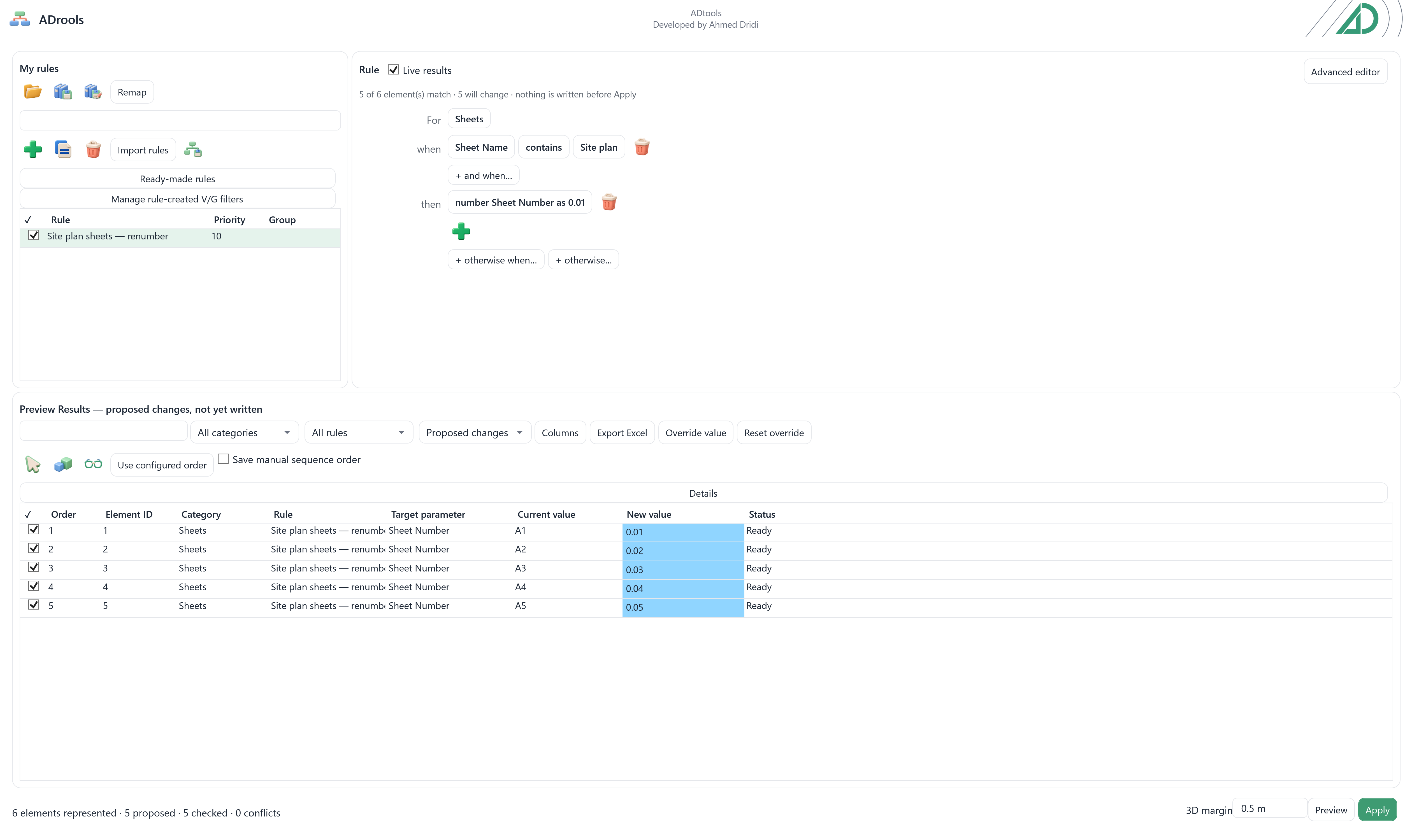
Choose Sheets as the scope and Sheet Name contains Site plan. Add Sequential Numbering targeting the actual Sheet Number parameter.
Preview the sequence
Set Renumber All, prefix 0., start 1 and two digits. Preview proposes 0.01, 0.02…; inspect existing values and reserved numbers.
Apply your choices
Review checked rows and click Apply. Other sheets remain outside the batch; a changed context requires a new preview.
Riverside Office · fictional example
Five Site plan sheets change from A1–A5 to 0.01–0.05. Section A-A does not match the condition and remains unchanged.
Available in Revit 2024–2027 projects. Type writes can affect instances outside the scope; the preview identifies that impact. Linked data is read-only. Rules do not run automatically in the background.
The interface, in detail.
Current native interfaces populated with fictional project data, rendered outside Revit.
ADTOOLS IN YOUR OFFICE
Request a demo See ADtools on your projects.
A video demo built around your own cases. Get in touch to set up a call.