
Update data while keeping track of changes.
MANAGER HUB
ADL
WHAT THE TOOL DOES
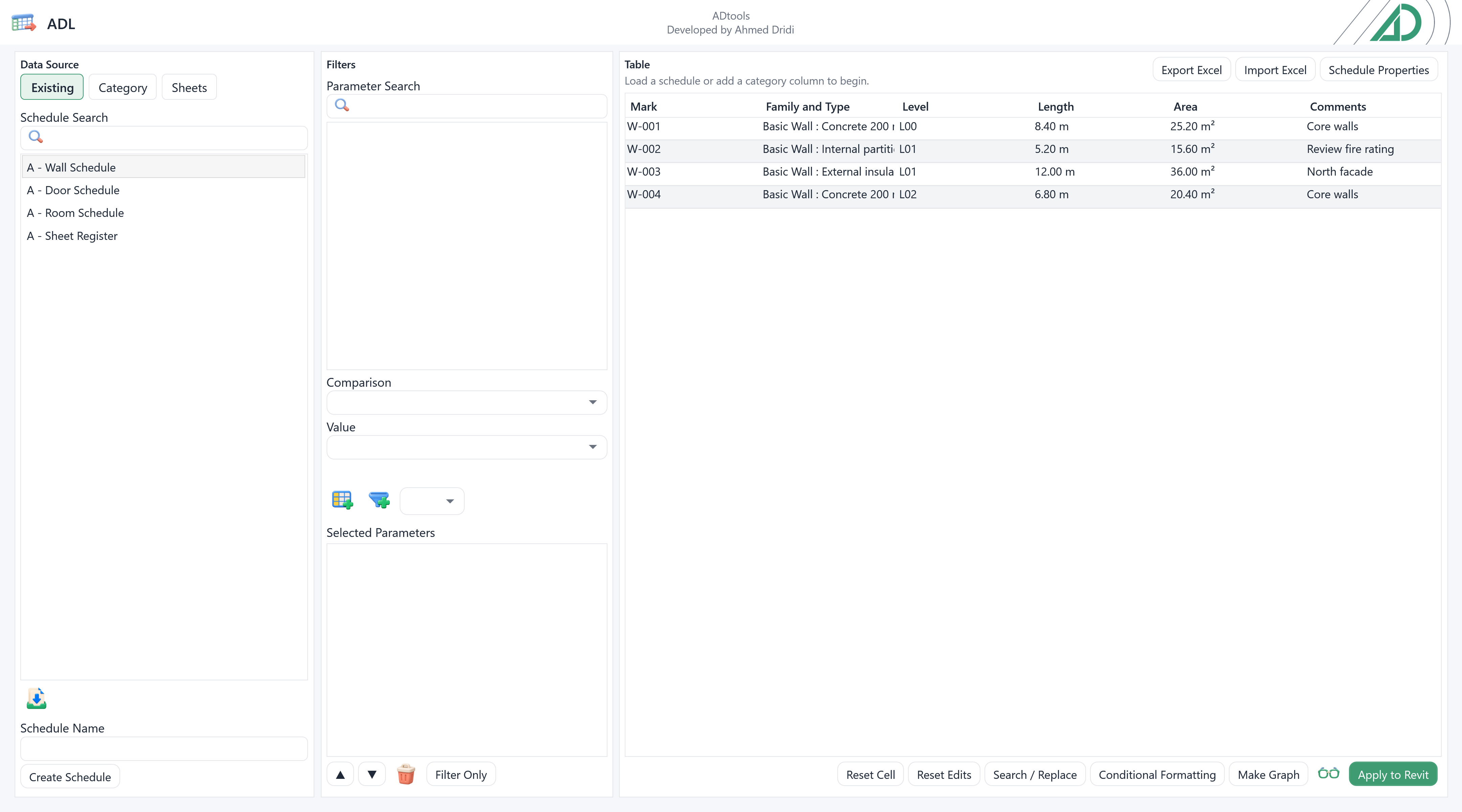
Work with schedules, categories and sheets in an editable grid, or exchange data with Excel. Changed values remain pending and highlighted until Apply to Revit; read-only schedule results are protected.
A CONCRETE USE CASE
A need. A clear workflow.
Read the grid, edit values, then validate the pending changes.
TRY ITInteractive example · fictional data
| ID | Mark | Area |
|---|---|---|
| 100023 | 12.4 m² | |
| 100024 | 18.6 m² | |
| 100025 | 9.5 m² |
This browser illustration explains the tool’s principle. Model actions take place in Revit.
KEY FEATURES
From data to charts
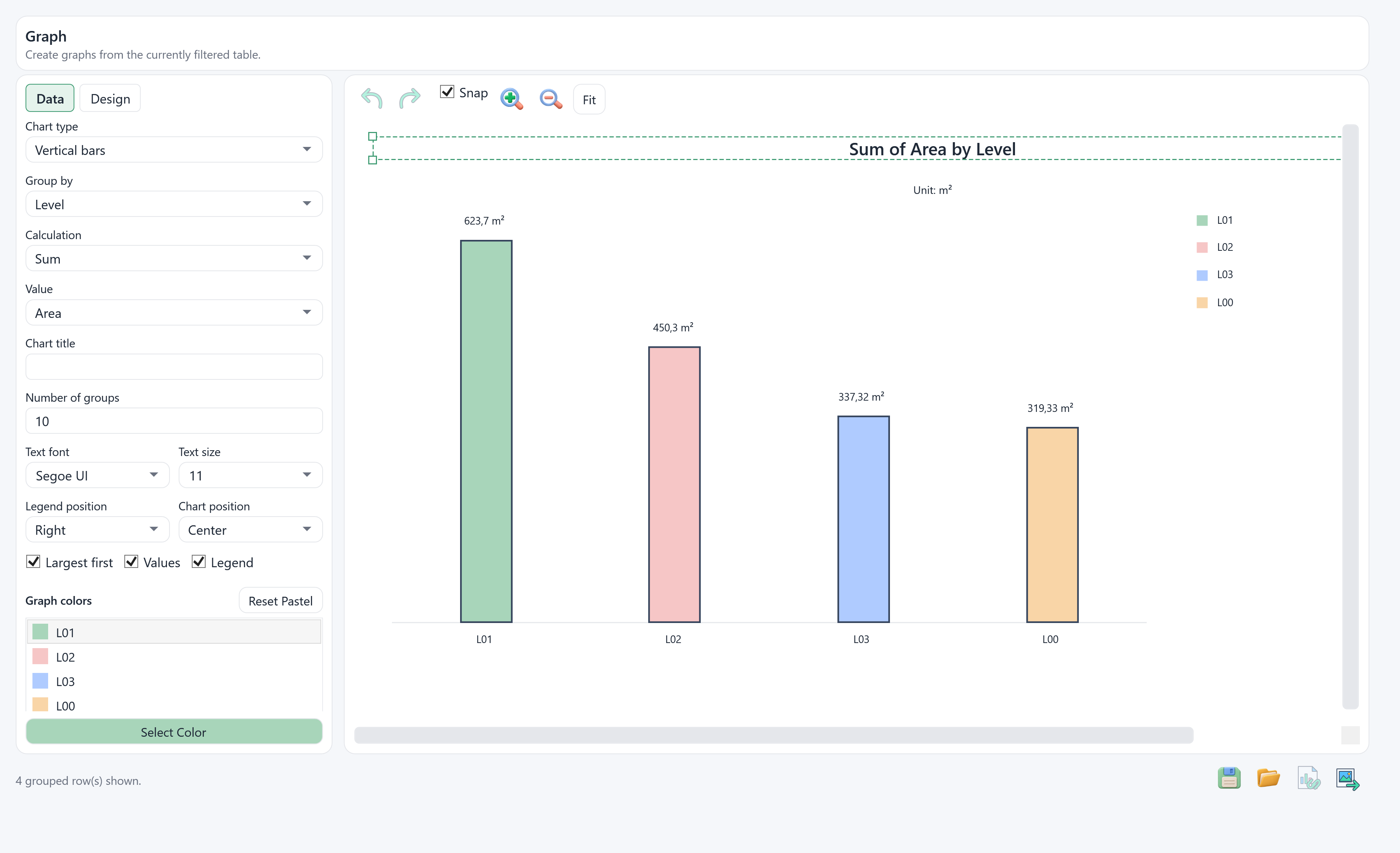
Build a chart from table data using grouping, aggregation, bars or sectors. Move, resize and style chart objects, use Undo/Redo, save an editable .adlgraph or export PNG. Link / Update loads or reloads a Revit image type; it does not automatically place an image or create native chart geometry.
Data grid
Display elements and parameters in an editable table with multiple selection, copy and paste, and value lists.
Schedules
Create or load schedules and configure fields, sorting, grouping, formatting and filters.
Controlled changes
Edited cells remain pending until confirmed, allowing you to check the result before using Apply to Revit.
Excel and sheets
Excel export and import for data round-tripping, plus tools for managing sheet information and revisions.
Schedule units
Fields preserve units, precision and widths. Filters and edits use column units; native calculated fields retain their identity in the original schedule.
Controlled renaming
Type and family renames check uniqueness conflicts. Incompatible proposals are rejected before application.
IN PRACTICE
From task to result.
Load the data
Start from an existing schedule, categories or project sheets. Choose the parameters and their order to build the table, then use filter rules to target rows.
Work in the grid
Edit cells, find and replace values, or use Excel import and export. Reset commands let you discard an individual cell edit or all changes.
Send changes to Revit
Review changes before using Apply to Revit. The table also lets you isolate elements in a view and create a schedule or update its fields, depending on the chosen source.
A practical example
To standardise sheet information, load the Sheets source, add the fields to check, correct values in the grid and apply valid changes to the project.
The tool in detail.
Illustrative example: the windows are populated with a fictional English-language Revit project, “Riverside Business Centre”.
ADTOOLS IN YOUR OFFICE
Request a demo See ADtools on your projects.
A video demo built around your own cases. Get in touch to set up a call.